Posted on Leave a comment

Smart City Mini Project Using Arduino UNO

(Street Light Automation, Smart Gate & Air Quality Alert)

Smart cities are built by combining automation, sensing, and decision-making.
In this project, a Smart City model was developed using an Arduino UNO and commonly available sensors to demonstrate how embedded systems can be used for urban automation.

This project focuses on real-world logic, not just blinking LEDs.


📌 Project Demonstration Video

🎥 Watch the complete working demonstration here:

👉 The video shows the automatic street lights, smart gate operation, and air quality alert system working in real time.


Project Overview

The model demonstrates four smart city subsystems working together:

  1. Automatic Street Light System (LDR based)
  2. Smart Entry Gate / Traffic Control (Ultrasonic + Servo)
  3. Air Quality Monitoring System (MQ135 sensor)
  4. Alert System (Buzzer for pollution warning)

Each subsystem works independently but is controlled by a single Arduino UNO, simulating how real smart-city nodes operate.


Components Used

  • Arduino UNO
  • LDR (Light Dependent Resistor – discrete, not module)
  • Ultrasonic Sensor (HC-SR04)
  • Servo Motor (gate control)
  • MQ135 Air Quality Sensor
  • Buzzer
  • LEDs (street lights)
  • 330 Ω resistors (current limiting)
  • Breadboard, jumper wires, external LED wiring

🔌 Circuit Diagram

🧩 Complete circuit diagram for this project:

Open circuit Open circuit

The circuit includes:

  • LDR voltage divider connected to an analog input
  • Ultrasonic sensor connected to digital pins
  • Servo motor connected to a PWM pin
  • MQ135 sensor connected to an analog input
  • Buzzer connected to a digital output
  • LED street lights driven through resistors

Street Light Implementation (Important Design Detail)

To simulate street lights, multiple LEDs were used.

Instead of driving LEDs directly from the Arduino pin, the following safe current-limiting method was implemented:

  • Two GPIO pins were used for street lighting
  • Each GPIO pin was connected through a 330 Ω resistor
  • The other end of each resistor was connected to 4–5 LEDs in parallel

Why this method was used

  • The resistor limits the current drawn from the GPIO pin
  • Using two GPIOs distributes the load instead of stressing a single pin
  • Parallel LEDs represent multiple street lights connected to one junction

This approach keeps the circuit safe for the Arduino while still allowing multiple LEDs to turn ON together during night conditions.


Automatic Street Light Logic (LDR)

  • The LDR continuously measures ambient light
  • During daytime:
    • LDR value is high
    • Street LEDs remain OFF
  • During night:
    • LDR value drops below a threshold
    • Street LEDs turn ON automatically

This demonstrates energy conservation, a core principle of smart cities.


Smart Gate / Traffic Control System

An ultrasonic sensor is placed near the entry point of the model.

  • When a vehicle or object comes within a fixed distance:
    • The ultrasonic sensor detects it
    • The servo motor rotates
    • The gate opens automatically
  • When the object moves away:
    • The gate closes again

This simulates automatic toll gates, parking entry systems, and traffic barriers.


Air Quality Monitoring (MQ135 Sensor)

To introduce environmental monitoring, an MQ135 air quality sensor was added.

  • The sensor measures pollution levels in the surrounding air
  • When the pollution value crosses a preset threshold:
    • The buzzer turns ON
    • This acts as an air pollution warning

This models how pollution monitoring stations work in smart cities.


Alert System (Buzzer)

The buzzer is used as a city alert mechanism.

  • OFF during normal air conditions
  • ON when pollution exceeds safe limits

This introduces the concept of public warning systems and real-time environmental alerts.


💻 Firmware Upload (Arduino Code)

Flash the firmware directly to Arduino UNO:

👉 This allows users to upload the tested firmware without opening the Arduino IDE.

#include <Servo.h>

#define TRIG_PIN 9
#define ECHO_PIN 8
#define LED_PIN  3
#define LED_PIN1 5
#define LDR_PIN  A0
#define MQ135_PIN A1
#define BUZZER_PIN 7
#define SERVO_PIN 6

Servo gateServo;

long duration;
int distance;
int ldrValue;
int airValue;

int LDR_THRESHOLD = 500;     // adjust after testing
int DIST_THRESHOLD = 15;     // cm
int AIR_THRESHOLD  = 400;    // MQ135 threshold (adjust)

void setup() {
  pinMode(TRIG_PIN, OUTPUT);
  pinMode(ECHO_PIN, INPUT);
  pinMode(LED_PIN, OUTPUT);
  pinMode(LED_PIN1, OUTPUT);
  pinMode(BUZZER_PIN, OUTPUT);

  gateServo.attach(SERVO_PIN);
  gateServo.write(90);   // gate closed

  Serial.begin(9600);
  Serial.println("Smart City System Starting...");
}

void loop() {

  /* ---------- LDR STREET LIGHT ---------- */
  ldrValue = analogRead(LDR_PIN);

  if (ldrValue < LDR_THRESHOLD) {
    analogWrite(LED_PIN, 255);     // street light ON
    digitalWrite(LED_PIN1, HIGH);
  } else {
    digitalWrite(LED_PIN, LOW);    // street light OFF
    digitalWrite(LED_PIN1, LOW);
  }

  /* ---------- ULTRASONIC SENSOR ---------- */
  digitalWrite(TRIG_PIN, LOW);
  delayMicroseconds(2);
  digitalWrite(TRIG_PIN, HIGH);
  delayMicroseconds(10);
  digitalWrite(TRIG_PIN, LOW);

  duration = pulseIn(ECHO_PIN, HIGH, 30000);
  distance = duration * 0.034 / 2;

  /* ---------- SERVO GATE CONTROL ---------- */
  if (distance > 0 && distance < DIST_THRESHOLD) {
    gateServo.write(0);    // open gate
  } else {
    gateServo.write(90);   // close gate
  }

  /* ---------- MQ135 AIR QUALITY ---------- */
  airValue = analogRead(MQ135_PIN);

  if (airValue > AIR_THRESHOLD) {
    digitalWrite(BUZZER_PIN, HIGH);   // pollution alert
  } else {
    digitalWrite(BUZZER_PIN, LOW);
  }

  /* ---------- SERIAL MONITOR ---------- */
  Serial.print("LDR: ");
  Serial.print(ldrValue);
  Serial.print(" | Distance: ");
  Serial.print(distance);
  Serial.print(" cm | Air: ");
  Serial.println(airValue);

  delay(1000);
}

Software Logic Summary

The Arduino program continuously performs:

  • Ambient light measurement (LDR)
  • Distance measurement (Ultrasonic)
  • Air quality measurement (MQ135)
  • Decision-making based on thresholds
  • Actuator control (LEDs, servo, buzzer)

All logic runs in a loop, similar to how embedded systems operate in real infrastructure.


Educational Value

This project helps learners understand:

  • GPIO usage and current limiting
  • Sensor interfacing and calibration
  • Real-world automation logic
  • Embedded decision-making
  • Power and safety considerations
  • Smart city concepts beyond theory

Unlike ready-made kits, this setup uses discrete components, encouraging deeper understanding and troubleshooting skills.


Conclusion

This Smart City project demonstrates how simple electronics and embedded programming can be combined to address urban automation challenges such as energy efficiency, traffic control, and pollution monitoring.

It serves as a reference implementation for students and educators exploring smart-city concepts using Arduino.

Posted on Leave a comment

Arduino Uno Dot Matrix Display Using MAX7219 (Scrolling Text)

In this project, we interface an 8×8 Dot Matrix Display (MAX7219) with Arduino Uno to display scrolling text using the MD_Parola library.

This setup is ideal for learning:

  • SPI communication
  • External display control
  • Library-based programming
  • Real-time visual output from code

All components, wiring, code, and flashing are available on a single page for smooth lab execution.


Circuit Diagram (Arduino Uno + MAX7219)

The circuit below shows the exact wiring required between the Arduino Uno and the dot matrix module.

👉 Open this on the board or laptop and follow the connections directly.

Open circuit Open circuit

Pin Connections

MAX7219 ModuleArduino Uno
VCC5V
GNDGND
DIND11
CS / LOADD10
CLKD13

Output Preview

The following video shows the expected output after successful wiring and code upload.

📺 Demo Video
https://youtube.com/shorts/sZoBYKpf11I


Required Libraries

This project uses the following Arduino libraries:

  • MD_MAX72XX
  • MD_Parola

How to Install Libraries

  1. Open Arduino IDE
  2. Go to Sketch → Include Library → Manage Libraries
  3. Search and install:
    • MD_MAX72XX
    • MD_Parola
  4. Restart Arduino IDE after installation

If libraries are missing, the code will not compile.


Arduino Uno Code (Scrolling Text)

Copy and paste the following code into Arduino IDE:

#include <MD_Parola.h>
#include <MD_MAX72XX.h>
#include <SPI.h>

#define HARDWARE_TYPE MD_MAX72XX::FC16_HW
#define MAX_DEVICES 1   // Number of dot matrix modules
#define CS_PIN 10       // CS (LOAD) pin

MD_Parola P = MD_Parola(HARDWARE_TYPE, CS_PIN, MAX_DEVICES);

void setup() {
  P.begin();
  P.displayText("HELLO!", PA_CENTER, 70, 0, PA_SCROLL_LEFT, PA_SCROLL_LEFT);
}

void loop() {
  if (P.displayAnimate()) {
    P.displayReset();
  }
}

Uploading Code to Arduino Uno

  1. Connect Arduino Uno using USB cable
  2. Select:
    • Board: Arduino Uno
    • Port: Correct COM port
  3. Click Upload

One-Click Arduino Flash (Recommended)

To avoid IDE and driver issues, use the flash button below to upload firmware directly.


Common Issues and Fixes

  • No display output
    • Check VCC and GND
    • Verify CS pin is set to 10 in code
  • Compilation error
    • Confirm both libraries are installed
  • Display orientation incorrect
    • Ensure FC16_HW hardware type is selected

Next Steps

You can extend this project by:

  • Adding a joystick to control text movement
  • Changing text dynamically
  • Using multiple dot matrix modules
  • Creating interactive animations

This project forms a strong foundation for input + output based embedded systems.

Posted on Leave a comment

AI Robot Head Tracking Using Browser Vision (No Training, No Server)

Turn your head left, right, up, and down.
Open circuit Open circuit

Download FreeCAD project and STL files

Introduction

Most “AI robot face” demos rely on heavy machine-learning models, cloud APIs, or large datasets.
This project explores a different approach:

Using simple geometry and browser-based vision to create an expressive robot head that reacts to human movement in real time.

The robot head tracks left, right, up, and down head motion and mirrors it using animated eyes displayed on a small OLED screen — all controlled directly from a web browser.

No dataset.
No model training.
No server.

What This Project Does

  • Detects a human face using the browser camera
  • Estimates head orientation (yaw & pitch)
  • Sends motion data to an Arduino using Web Serial
  • Animates eye movement on a 0.96″ OLED display
  • Allows direction inversion (mirror correction) at runtime

The result is a small robot head that feels responsive and alive.

System Architecture

Browser Camera
      ↓
Face Geometry (MediaPipe)
      ↓
Yaw & Pitch Calculation
      ↓
Web Serial (USB)
      ↓
Arduino UNO
      ↓
OLED Eye Animation

All computation happens locally in the browser.

Hardware Used

  • Arduino UNO
  • 0.96″ OLED (SSD1306, I2C)
  • USB cable
  • 3D-printed enclosure

Software Stack

  • HTML + JavaScript
  • MediaPipe Face Mesh
  • Web Serial API
  • Arduino (C++)

Key Design Decisions

1. Pupils Move, Not Eyeballs

Moving only the pupils inside fixed eyeballs makes the face feel more natural and expressive.

2. Face-Relative Geometry

Head motion is measured relative to facial landmarks, not camera pixels.
This makes movement symmetric and stable.

3. Runtime Direction Flip

A toggle button allows instant correction for mirrored cameras without changing code.


Educational Value

This project can be used to teach:

  • Coordinate systems
  • Geometry-based tracking
  • Browser ↔ hardware communication
  • Human-centered design

It is suitable for classrooms, labs, and exhibitions.


Conclusion

This robot head demonstrates that intelligence is not just about models, but about understanding interaction.

By combining browser vision, simple math, and embedded hardware, we can build systems that feel responsive, expressive, and intuitive — without complexity.


Try It Live

Allow camera access, connect the Arduino, and move your head left, right, up, and down.

Posted on Leave a comment

Make a Joystick-Controlled Car with ESP32 and NodeMCU

Are you interested in making a remote-controlled car using ESP32 and NodeMCU? In this project, we will use a joystick module to control a car wirelessly. This is a fun and simple way to explore ESP-NOW communication and motor control!


What You Need

To build this joystick-controlled car, you will need:

  • ESP32 (for the remote controller)
  • NodeMCU (ESP8266) (for the car)
  • Joystick module
  • L298N motor driver
  • Two DC motors (500 RPM Johnson motors)
  • Two wheels (70mm diameter, 20mm width)
  • LM2596 voltage regulator (to power NodeMCU)
  • Power source (3S battery or similar)
  • Jumper wires

How It Works

  • The ESP32 reads joystick movements and sends commands wirelessly using ESP-NOW.
  • The NodeMCU receives these commands and controls the motors accordingly.
  • The car moves forward, backward, left, and right based on joystick input.

Wiring Connections

Remote (ESP32 + Joystick Module)

  • Joystick VCCESP32 3.3V
  • Joystick GNDESP32 GND
  • Joystick X-axisESP32 GPIO 34
  • Joystick Y-axisESP32 GPIO 35

Car (NodeMCU + L298N Motor Driver + Motors)

  • Motor 1 IN1NodeMCU D1
  • Motor 1 IN2NodeMCU D2
  • Motor 2 IN1NodeMCU D3
  • Motor 2 IN2NodeMCU D4
  • Motor 1 ENANodeMCU D5
  • Motor 2 ENBNodeMCU D6
  • LM2596 Output (3.3V/5V)NodeMCU Vin
  • LM2596 GroundNodeMCU GND

ESP32 Code for the Remote

#include <esp_now.h>
#include <WiFi.h>

// Define DEBUG to enable or disable serial debug statements
//#define DEBUG  // Comment this line to disable debug statements

const int xPin = 34;  // X-axis connected to GPIO 34
const int yPin = 35;  // Y-axis connected to GPIO 35

// Define thresholds for dead zone (adjust as needed)
const float DEAD_ZONE_THRESHOLD = 0.2;  // Joystick values within ±0.2V are considered centered

uint8_t broadcastAddress[] = {0xCC, 0x50, 0xE3, 0x0D, 0x15, 0x09};

typedef struct struct_message {
  char command[32];
  int b;
} struct_message;

struct_message myData;
esp_now_peer_info_t peerInfo;

void OnDataSent(const uint8_t *mac_addr, esp_now_send_status_t status) {
  #ifdef DEBUG
  Serial.print("\r\nLast Packet Send Status:\t");
  Serial.println(status == ESP_NOW_SEND_SUCCESS ? "Delivery Success" : "Delivery Fail");
  #endif
}

void setup() {
    #ifdef DEBUG
    Serial.begin(115200);
    #endif

    WiFi.mode(WIFI_STA);

    if (esp_now_init() != ESP_OK) {
        #ifdef DEBUG
        Serial.println("Error initializing ESP-NOW");
        #endif
        return;
    }

    esp_now_register_send_cb(OnDataSent);
    memcpy(peerInfo.peer_addr, broadcastAddress, 6);
    peerInfo.channel = 0;
    peerInfo.encrypt = false;
    if (esp_now_add_peer(&peerInfo) != ESP_OK) {
        #ifdef DEBUG
        Serial.println("Failed to add peer");
        #endif
        return;
    }
}

void loop() {
    int xValue = analogRead(xPin);  // Read X-axis value
    int yValue = analogRead(yPin);  // Read Y-axis value

    float xVoltage = (xValue * 3.3) / 4095;  // Convert to voltage (0-3.3V)
    float yVoltage = (yValue * 3.3) / 4095;  // Convert to voltage (0-3.3V)

    #ifdef DEBUG
    Serial.print("X Voltage: "); Serial.print(xVoltage);
    Serial.print(" | Y Voltage: "); Serial.println(yVoltage);
    #endif

    // Check if the joystick is within the dead zone (centered)
    if (abs(xVoltage - 1.65) < DEAD_ZONE_THRESHOLD && abs(yVoltage - 1.65) < DEAD_ZONE_THRESHOLD) {
        strcpy(myData.command, "S"); // Stop (centered)
        myData.b = 0;  // No movement
    }
    // Check for movement outside the dead zone
    else if (xVoltage > (1.65 + DEAD_ZONE_THRESHOLD)) {
        strcpy(myData.command, "F"); // Forward
        myData.b = xVoltage;
    } else if (xVoltage < (1.65 - DEAD_ZONE_THRESHOLD)) {
        strcpy(myData.command, "B"); // Backward
        myData.b = xVoltage;
    } else if (yVoltage > (1.65 + DEAD_ZONE_THRESHOLD)) {
        strcpy(myData.command, "L"); // Left
        myData.b = yVoltage;
    } else if (yVoltage < (1.65 - DEAD_ZONE_THRESHOLD)) {
        strcpy(myData.command, "R"); // Right
        myData.b = yVoltage;
    }

    // Send the command via ESP-NOW
    esp_err_t result = esp_now_send(broadcastAddress, (uint8_t *) &myData, sizeof(myData));
    #ifdef DEBUG
    if (result == ESP_OK) {
        Serial.println("Sent with success");
    } else {
        Serial.println("Error sending the data");
    }
    #endif
    
    delay(20);  // Small delay to make output readable
}

NodeMCU Code for the Car

#include <ESP8266WiFi.h>
#include <espnow.h>

// Structure to receive data
typedef struct struct_message {
  char a[32];
  int b;
  float c;
  bool d;
} struct_message;

struct_message myData;

// Pin definitions
#define LED_PIN 2  // Onboard LED pin (D4 on ESP8266)
#define M1_ENA D5   // Motor 1 PWM (Speed)
#define M2_ENB D6   // Motor 1 PWM (Speed)
#define M1_IN1 D1  // Motor 1 input 1
#define M1_IN2 D2  // Motor 1 input 2
#define M2_IN1 D3  // Motor 2 input 1
#define M2_IN2 D4  // Motor 2 input 2

// Default speeds (adjust these values experimentally)
int speedLeft = 800;   // 0-1023 (80% speed)
int speedRight = 700;  // Right motor slightly slower

// Callback function when data is received
void OnDataRecv(uint8_t *mac, uint8_t *incomingData, uint8_t len) {
  memcpy(&myData, incomingData, sizeof(myData));
  Serial.print("Bytes received: ");
  Serial.println(len);
  Serial.print("Data received: ");
  Serial.println(myData.a);
  Serial.print("value received: ");
  Serial.println(myData.b);

  // Control motors based on received character
  if (strcmp(myData.a, "F") == 0) {
    // Move forward
    analogWrite(M1_ENA, speedLeft);
    analogWrite(M2_ENB, speedRight);
    digitalWrite(M1_IN1, HIGH); digitalWrite(M1_IN2, LOW);
    digitalWrite(M2_IN1, HIGH); digitalWrite(M2_IN2, LOW);
    digitalWrite(LED_PIN, LOW);  // Turn on LED (inverted logic on ESP8266)
  } else if (strcmp(myData.a, "B") == 0) {
    // Move backward
    analogWrite(M1_ENA, speedLeft);
    analogWrite(M2_ENB, speedRight);
    digitalWrite(M1_IN1, LOW); digitalWrite(M1_IN2, HIGH);
    digitalWrite(M2_IN1, LOW); digitalWrite(M2_IN2, HIGH);
    digitalWrite(LED_PIN, HIGH);  // Turn off LED (inverted logic on ESP8266)
  } else if (strcmp(myData.a, "L") == 0) {
    // Turn left
    analogWrite(M1_ENA, speedLeft);
    analogWrite(M2_ENB, speedRight);
    digitalWrite(M1_IN1, LOW); digitalWrite(M1_IN2, HIGH);
    digitalWrite(M2_IN1, HIGH); digitalWrite(M2_IN2, LOW);
  } else if (strcmp(myData.a, "R") == 0) {
    // Turn right
    analogWrite(M1_ENA, speedLeft);
    analogWrite(M2_ENB, speedRight);
    digitalWrite(M1_IN1, HIGH); digitalWrite(M1_IN2, LOW);
    digitalWrite(M2_IN1, LOW); digitalWrite(M2_IN2, HIGH);
  }
  else if (strcmp(myData.a, "S") == 0) {
    // Turn right
    analogWrite(M1_ENA, 0);
    analogWrite(M2_ENB, 0);
    digitalWrite(M1_IN1, HIGH); digitalWrite(M1_IN2, LOW);
    digitalWrite(M2_IN1, LOW); digitalWrite(M2_IN2, HIGH);
  } else {
    // Stop motors
    analogWrite(M1_ENA, 0);
    analogWrite(M2_ENB, 0);
    //   digitalWrite(M1_IN1, LOW); digitalWrite(M1_IN2, LOW);
    //   digitalWrite(M2_IN1, LOW); digitalWrite(M2_IN2, LOW);
  }
}

void setup() {
  // Initialize Serial Monitor
  Serial.begin(115200);

  // Initialize pins
  pinMode(LED_PIN, OUTPUT);
  pinMode(M1_IN1, OUTPUT);
  pinMode(M1_IN2, OUTPUT);
  pinMode(M2_IN1, OUTPUT);
  pinMode(M2_IN2, OUTPUT);

  // Ensure motors and LED are off initially
  digitalWrite(LED_PIN, HIGH);  // LED off (inverted logic on ESP8266)
  digitalWrite(M1_IN1, LOW); digitalWrite(M1_IN2, LOW);
  digitalWrite(M2_IN1, LOW); digitalWrite(M2_IN2, LOW);

  // Set device as a Wi-Fi Station
  WiFi.mode(WIFI_STA);

  // Initialize ESP-NOW
  if (esp_now_init() != 0) {
    Serial.println("Error initializing ESP-NOW");
    return;
  }

  // Register the receive callback
  esp_now_set_self_role(ESP_NOW_ROLE_SLAVE);
  esp_now_register_recv_cb(OnDataRecv);
}

void loop() {
  // Nothing to do here
}

How to Upload the Code

  1. Upload the remote code to your ESP32.
  2. Upload the car code to your NodeMCU.
  3. Power up both devices and check serial monitor outputs for debugging.

Testing the Car

  1. Move the joystick forward → The car moves forward.
  2. Move the joystick backward → The car moves backward.
  3. Move the joystick left → The car turns left.
  4. Move the joystick right → The car turns right.
  5. Release the joystick (center position) → The car stops.

3d Printed parts

Since when i made this car. I had Johnson motors of 500RPM. But i did not had any bracket so i designed the brackets in FreeCAD and printed on Creality ender 3 v3 KE printer.

Posted on Leave a comment

How to use bipolar stepper motor using l298n module and raspberry pi pico w

The stepper motor that i have is a bipolar stepper motor.

On it one side there is information about it.

TYPE: 17PM-k310-33VS
NO.   T4508-03
    Minebea-Matsushita
    Motor Corporation
     Made in Thailand

It is a NEMA 17
17 stands for 1.7inches

Raspberry Pi Pico WL298N Module
GNDGND
GP0IN1
GP1IN2
GP2IN3
GP3IN4

The two coils pair are found using the multimeter in resistance mode.

Since I am using a regular motor driver. I cannot do the micro stepping.
But even with micro stepping, it can do a lot of stuff.

So there are two coil pair.
step angle of 1.8o degrees.

So to make a 360o
we need 360o / 1.8o = 200 steps

So we can make a full rotation with 200 steps of 1.8 degrees each.
This is what is known as the full step.
In full step, we only excite 1 pole at a time. There are two poles per coil.

We can excite two poles at a time. Which will half the step angle to 0.9 degrees.
The following is the table I have made to see how many steps I will be made by employing a 0.9 deg angle. It is only up to 300 steps or 270 deg. You can calculate from then on.

Micropython Code

from machine import Pin
import utime
motor_pins = [Pin(0, Pin.OUT), Pin(1, Pin.OUT), Pin(2, Pin.OUT), Pin(3, Pin.OUT)]
step_sequence = [
    [1,0,0,0],#1
    [1,0,1,0],#13
    [0,0,1,0],#3
    [0,1,1,0],#23
    [0,1,0,0],#2
    [0,1,0,1],#24
    [0,0,0,1],#4
    [1,0,0,1]#41  
]
off_seq = [(0,0,0,0)]
length_step_sequence = len(step_sequence)
one_rotation_length = 400/length_step_sequence
step_delay = (1/1000)*10 #ms
def step_off():
    #print("step off")
    motor_pins[0].value(0)
    motor_pins[1].value(0)
    motor_pins[2].value(0)
    motor_pins[3].value(0)
    utime.sleep(step_delay)
'''
Function Name: move_step
Description:
It takes the step sequence and assigns the motor pins to the value
according to the step sequence.
It moves one step seqence at a time.
For a half step sequence
each step will be 0.9 degrees.
For a full step sequence
each step will be 1.8 degrees.
'''
def move_step(seq):
    ygh = seq
    #print(ygh)
    for step1,pins in zip(ygh,motor_pins):
        pins.value(step1)
'''
Function Name: move one step
Description:
It moves all the steps in the sequence.
For a half wave steps => 8 * 0.9 = 7.2 deg
For a full wave steps => 4 * 1.8 = 7.2 deg
'''
def move_one_step(forward,reverse):
    for i in range(0,length_step_sequence,1):
        if forward == 1:
            move_step((step_sequence[i]))
        elif reverse == 1:
            move_step(reversed(step_sequence[i]))
        utime.sleep(step_delay)
def rotation(steps,forward,reverse):
    
    if forward == 1:
        for i in range(steps):
            move_one_step(1,0)
            print("Forward steps: ",steps)
    elif reverse == 1:
        for i in range(steps):
            move_one_step(0,1)
            print("Reverse steps: ",steps)
    
        #step_off()

'''
Half step calculations
8 Steps of 0.9 deg each.
total degree of 8 steps => 8 * 0.9 = 7.2
(8 step sequence) * (50 repeated steps) * 0.9 deg = 360
So, a total of 400 steps are required to make 360 degree.
7.2 deg x (50 repeated steps) = 360 degrees
7.2 deg x 25 = 180 degree
'''
while True:
    rotation(25,1,0) # move 180 forward(CW) 
    utime.sleep(1)
    rotation(50,0,1) # move 366 reverse (CCW)
    utime.sleep(1)
Posted on Leave a comment

12V PC Fan Control Using Raspberry Pi Pico W By PWM

How to control a 12V PC fan using Pulse Width Modulation (PWM) signals with the Raspberry Pi Pico W board and an L298N motor driver module. I will use the MicroPython programming language and the Thonny IDE to write and run the code.

Raspberry Pi Pico WL298n Module
GP9IN1
GNDGND
VSYS
(Connect this only when you save as “main.py” in raspberry pi.)
+5V
12V PC FANL298n Module
Positive Lead(+12V wire)OUT1
Negative Lead OUT2

Micropython Code

import network
import socket
import time
from time import sleep
from picozero import pico_temp_sensor, pico_led
import machine

ssid = 'Abhay'
password = 'AK26@#36'

wdt = machine.WDT(timeout=5000)  # Timeout in milliseconds (e.g., 5000ms = 5 seconds)
def feed_watchdog(timer):
    wdt.feed()  # Feed the watchdog timer to reset the countdown

timerWdt = machine.Timer()
timerWdt.init(period=1000, mode=machine.Timer.PERIODIC, callback=feed_watchdog)

GPIO_PIN_9 = machine.Pin(9)
pwm9 = machine.PWM(GPIO_PIN_9)
pwm9.freq(25000)
    
current_pwm_duty = 0
sleep_duration = 0.01
def updateFan(x,y):
    global current_pwm_duty,sleep_duration
    current_pwm_duty = x
    
    if sleep_duration > 0 and sleep_duration <= 2:
        sleep_duration = y
    else:
        sleep_duration = 0.01

def fanon(timer):
    global current_pwm_duty,sleep_duration
    pwm9.duty_u16(current_pwm_duty)
    time.sleep(sleep_duration)
    pwm9.duty_u16(0)
    
def fanoff():
    pwm9.duty_u16(0)

timerUpdate = machine.Timer()
timerUpdate.init(period=2000, mode=machine.Timer.PERIODIC, callback=fanon)
def connect():
    #Connect to WLAN
    wlan = network.WLAN(network.STA_IF)
    wlan.active(True)
    wlan.connect(ssid, password)
    while wlan.isconnected() == False:
        print('Waiting for connection...')
        sleep(1)
    ip = wlan.ifconfig()[0]
    print(f'Connected on {ip}')
    return ip

def open_socket(ip):
    # Open a socket
    address = (ip, 80)
    connection = socket.socket()
    connection.bind(address)
    connection.listen(1)
    return connection

def webpage(temperature, state,user_value):
    #Template HTML
    
    html = f"""
            <!DOCTYPE html>
<html>
<head>
    <meta name="viewport" content="width=device-width, initial-scale=1.0">
</head>
<body>
    <form action="./lighton" style="display: flex; justify-content: center;">
        <input type="submit" value="Light on" style="font-size: 40px;" />
    </form>
    <form action="./lightoff" style="display: flex; justify-content: center;">
        <input type="submit" value="Light off" style="font-size: 40px;" />
    </form>
    <p style="font-size: 20px;">LED is {state}</p>
    <p style="font-size: 20px;">Temperature is {temperature}</p>
    
    
    <form action="./fanon_LOW" style="display: flex; justify-content: center;">
        <input type="submit" value="FAN on LOW" style="font-size: 40px;" />
    </form>
     <form action="./fanon_MID" style="display: flex; justify-content: center;">
        <input type="submit" value="FAN on MID" style="font-size: 40px;" />
    </form>
    <form action="./fanon_FULL" style="display: flex; justify-content: center;">
        <input type="submit" value="FAN off FULL" style="font-size: 40px;" />
    </form>
    <form action="./fanoff" style="display: flex; justify-content: center;">
        <input type="submit" value="FAN off" style="font-size: 40px;" />
    </form>
    
    <h1>Numeric Form</h1>
    <form method=POST action="/usrval">
        <label for="value">Enter a numeric value:</label><br>
        <input type="number" id="value" name="value" min="30" max="65" value="30"required><br><br>
        <input type="submit" value="Submit">
    </form>
    <p>User value: {user_value}</p>  <!-- Display the user-submitted value -->
</body>
</html>


            """
    return str(html)
def serve(connection):
    #Start a web server
    state = 'OFF'
    pico_led.off()
    temperature = 0
    user_value = None  # Variable to store the user-submitted value
    usr_int = 0
    while True:
        client = connection.accept()[0]
        request = client.recv(1024)
        request = str(request)
        rqst1 = request.split()
        '''
        for x1 in rqst1:
            if(x1.find("usrval") != -1):
                print(rqst1)
                #print(x1)
        #print(rqstfind)
        '''
        try:
            
            for x1 in rqst1:
                if "value=" in x1:
                    user_value = x1.split("=")[2].strip("'")
                    usr_int = int(user_value) * 1000
                    if usr_int >= 65535:
                        usr_int = 65535
                    if usr_int <= 0:
                        usr_int = 0
                    print(user_value," ",type(user_value)," int:",usr_int," ",type(usr_int))


        except:
            pass
        
        try:
            request = request.split()[1]
        except IndexError:
            pass
        if request == '/lighton?':
            pico_led.on()
            state = 'ON'
        elif request =='/lightoff?':
            pico_led.off()
            state = 'OFF'
        elif request == '/fanon_LOW?':
            #put the usr value in the pwm duty
            updateFan(30000,1.75)
        elif request == '/fanon_MID?':
            #put the usr value in the pwm duty
            updateFan(45000,1.5)
        elif request == '/fanon_FULL?':
            #put the usr value in the pwm duty
            updateFan(65000,1.6) 
        elif request == '/fanoff?':
            updateFan(0,1)
        
          
        temperature = pico_temp_sensor.temp
        html = webpage(temperature, state,user_value)
        client.send(html)
        client.close()

try:
    ip = connect()
    connection = open_socket(ip)
    serve(connection)
except KeyboardInterrupt:
    machine.reset()
Posted on Leave a comment

Raspberry Pi Pico Internal Temperature Sensor Based Fan Speed Control using PID Algorithm with Anti-Windup Logic

This system uses the Raspberry pi pico development board which has an RP2040 microcontroller. The RP2040 microcontroller has an internal temperature sensor.

Using its internal temperature sensor I have devised a very simple setup that demonstrates the PID algorithm. Using PID Algorithm control technique I am controlling the fan speed by changing the PWM duty cycle.

Component required:

  1. Raspberry Pi Pico
  2. PC Fan (+12V)
  3. L298n Module
  4. +12V Power supply

Commonly the PC fan changes its speed by PWM signal, I am sending a PWM signal of frequency 29Khz. Most PC fans operate from 25Khz to 30Khz. PWM signal duty cycle can be from 30% to 100%. At duty cycle lower than 30% PC fan won’t start.

We will dive into the code and explain each step of the implementation.

Code Overview:
The code provided is written in MicroPython and utilizes the machine module for hardware interactions. Here’s an overview of the key components and functionalities:

  1. PWM Configuration: The code configures a GPIO pin for Pulse Width Modulation (PWM) and sets the frequency to 29 kHz. PWM is used to control the speed of the fan.
  2. Temperature Sensor Configuration: The internal temperature sensor is configured using the ADC (Analog-to-Digital Converter) module. The conversion factor is calculated to convert the raw ADC readings to temperature values.
  3. PID Algorithm Implementation: The PID algorithm is implemented using proportional (P), integral (I), and derivative (D) control constants. The target temperature is set, and the error between the target temperature and the measured temperature is calculated. The code calculates the proportional, integral, and derivative terms and combines them to obtain the PID value.
  4. Anti-Windup Logic: To prevent windup issues, an anti-windup logic is implemented. It limits the PID value within a valid range to avoid saturation or unstable behavior.
  5. Timer Interrupts: Timer objects are created to trigger callback functions at regular intervals. The 100 ms timer callback updates the PID value and adjusts the fan speed accordingly, while the 1-second timer callback prints relevant information for monitoring and debugging purposes.

Implementation Walkthrough:

  1. PWM and Temperature Sensor Configuration: The code starts by configuring the PWM pin and the internal temperature sensor.
  2. PID Constants and Variables: The proportional control constant (kp), minimum duty cycle value (min_duty_cycle), and target temperature (target_temp) are set. Variables for duty cycle, error, temperature, integral error (i_err), integral count (i_cnt), derivative count (d_cnt), previous error (prev_err), and PID value (PID) are initialized.
  3. Timer Interrupts: Timer objects are created and initialized to trigger the respective callback functions every 100 ms and 1 second.
  4. PID Calculation and Fan Control: In the timer callback function for 100 ms, the raw temperature is converted to a temperature value. The error, integral error, derivative count, proportional count, and PID value are calculated. The PID value is limited to a valid range and converted to an appropriate duty cycle value for the PWM. The duty cycle is applied to control the fan speed.
  5. Monitoring and Debugging: The timer callback function for 1 second prints relevant information such as the PID value, error, duty cycle, temperature, derivative count, integral count, and proportional count.
import machine
import utime

# Configure the GPIO pin for PWM
pwm_pin = machine.Pin(9)
pwm = machine.PWM(pwm_pin)

# Set the PWM frequency to 29 kHz
pwm.freq(29000)

# Configure the internal temperature sensor
sensor_temp = machine.ADC(machine.ADC.CORE_TEMP)
conversion_factor = 3.3 / 65535

# Set the proportional control constants
#target_temp = 25  # Set the desired target temperature
# Set the proportional control constants
#target_temp = 25.63997  # Set the desired target temperature
target_temp = 25.17182  # Set the desired target temperature
#target_temp = 24.70368
#target_temp = 24.23554
#target_temp = 23.76739
#target_temp = 23.29925
kp = (((2**16)-1) * -1)
min_duty_cycle = (((2**16)-1) * 0.3)  # Minimum duty cycle value to start the fan

duty_cycle = 0
error = 0
temperature = 0

# Initialize the timestamp for 1 second intervals
timestamp_1s = utime.time()
p_cnt = 0
i_err = 0
Ki = -200
i_cnt = 0

prev_err = 0
Kd = -2500
d_cnt = 0
PID = 0
# Timer interrupt callback function for 100 ms interval
def timer_callback_100ms(timer):
    global duty_cycle, error, temperature,i_err,i_cnt,prev_err,Kd,d_cnt,p_cnt,PID,Ki

    raw_temp = sensor_temp.read_u16() * conversion_factor
    temperature = (27 - (raw_temp - 0.706) / 0.001721)
    error = target_temp - temperature
    i_err += (error)
    i_cnt = int(i_err * Ki)
    d_cnt = ((error - prev_err) * Kd)/0.1
    p_cnt = error * kp
    PID = (p_cnt + d_cnt + i_cnt)
    if PID >= 65535:
        PID = 65535
    if PID <= 0 :
        PID = 0
    duty_cycle = int(PID)
    
    pwm.duty_u16(duty_cycle)
    '''
    if error >= 0:
        #duty_cycle = max((duty_cycle - int(error * kp)), 0)
        duty_cycle = int(max(( d_cnt + i_cnt + (1 * error * kp)), 0))
        if duty_cycle <= 0:
            duty_cycle = 0
        pwm.duty_u16(duty_cycle)
    elif error < 0:
        duty_cycle = int(min( d_cnt + i_cnt +  error * kp), 65535))
        
        #duty_cycle = min(max((duty_cycle + int(-1 * error * kp)), int(min_duty_cycle)), 65535)
        pwm.duty_u16(int(duty_cycle))
    '''
    prev_err = error

# Timer interrupt callback function for 1 second interval
def timer_callback_1s(timer):
    print(f"pid: {PID}\terror: {error}\tduty: {duty_cycle}\tTemp: {temperature}\td_cnt: {d_cnt}\ti_cnt: {i_cnt}\tp_cnt: {p_cnt}")

# Create timer objects
timer_100ms = machine.Timer()
timer_1s = machine.Timer()

# Configure the timer to trigger the 100 ms callback function every 100 milliseconds
timer_100ms.init(period=100, mode=machine.Timer.PERIODIC, callback=timer_callback_100ms)

# Configure the timer to trigger the 1 second callback function every 1 second
timer_1s.init(period=1000, mode=machine.Timer.PERIODIC, callback=timer_callback_1s)

# Main loop
while True:
    # Add any other desired non-blocking operations here
    
    # Sleep briefly to avoid excessive CPU usage
    utime.sleep(0.01)

Posted on Leave a comment

Wireless Plant Watering System using Raspberry Pi Pico W

Every morning my mom waters the plant. She has to water them every day and sometimes in summer, she must provide water twice a day.

In winter plant needs water when necessary.

Solution:

For the above problem, I developed this project using raspberry pi pico w.

Here is what it does:

  1. It connects to the WiFi router. The wifi router allocates a fixed IP address. For that, I created a new entry in the DHCP bindings of the router.
  2. When you visit the IP address 192.168.1.101
  3. It samples the soil moisture sensor through the ADC. And display an HTML page that shows the status of ADC and the onboard LED.
  4. The HTML page also has a button for turning on the pump.
    I have kept it manual.
  5. When the PUMP ON button is pressed the water pump is turned ON. The water pump is connected via the L298n module. Which is controlled by a PWM signal of 1Khz frequency. The duty cycle is slowly increased to 75%.
    There is a timeout of 10 Seconds. If the timeout is reached the water pump will be turned off.

Schematic Diagram

Schematic Diagram

Micropython Code

import network
import socket
import time
from time import sleep
from picozero import pico_temp_sensor, pico_led
import machine

ssid = 'Abhay'
password = 'AK26@#36'
'''
# Pin GP9 (physical pin 5) on PicoZero
GPIO_PIN = 9

# Set up the GPIO pin as an output
pin9 = machine.Pin(GPIO_PIN, machine.Pin.OUT)

# Turn off the GPIO pin
pin9.off()
'''
GPIO_PIN_9 = machine.Pin(9)
pwm9 = machine.PWM(GPIO_PIN_9)

    
def ADC():
    adc = machine.ADC(0)  # Initialize ADC on pin A0
    sensor_value = adc.read_u16()  # Read the analog value from the sensor
    # Add your code to process and display the sensor value as per your requirements
    #print(sensor_value)
    #time.sleep_ms(500)  # Delay between readings (adjust as needed)
    #sensor_value = 18756
    percentage = 100 - ((sensor_value / 65535) * 100)
    #print(f"sensor_value: {sensor_value} percentage: {percentage}")
    return sensor_value,percentage
    
    
def gen_pwm(duration, timeout):
    # Set PWM frequency
    pwm9.freq(1000)  # Set frequency to 1 kHz

    start_time = time.ticks_ms()  # Get the initial timestamp
    pump_started = False

    while time.ticks_diff(time.ticks_ms(), start_time) < timeout:
        # Check water level using ADC
        ADC_Read = ADC()
        water_level = ADC_Read[1]
        #adc.read()

        if not pump_started and water_level < 50:
            # Start the pump by gradually increasing the duty cycle
            for duty in range(0, 32767, 100):
                pwm9.duty_u16(duty)
                time.sleep_ms(duration)  # Adjust the delay as needed for smooth transition
                ADC_Read = ADC()
                water_level = ADC_Read[1]
                
                if water_level >=50 :
                    break
            pump_started = True

        if water_level >= 50 or pump_started and water_level <= 0:
            # Stop the pump by setting the duty cycle to 0
            pwm9.duty_u16(0)
            break

    # Stop the PWM signal
    pwm9.duty_u16(0)

def connect():
    #Connect to WLAN
    wlan = network.WLAN(network.STA_IF)
    wlan.active(True)
    wlan.connect(ssid, password)
    while wlan.isconnected() == False:
        print('Waiting for connection...')
        sleep(1)
    ip = wlan.ifconfig()[0]
    print(f'Connected on {ip}')
    return ip

def open_socket(ip):
    # Open a socket
    address = (ip, 80)
    connection = socket.socket()
    connection.bind(address)
    connection.listen(1)
    return connection

def webpage(temperature, state,user_value):
    #Template HTML
    ADC_Value = ADC()
    html = f"""
            <!DOCTYPE html>
<html>
<head>
    <meta name="viewport" content="width=device-width, initial-scale=1.0">
</head>
<body>
    <form action="./lighton" style="display: flex; justify-content: center;">
        <input type="submit" value="Light on" style="font-size: 40px;" />
    </form>
    <form action="./lightoff" style="display: flex; justify-content: center;">
        <input type="submit" value="Light off" style="font-size: 40px;" />
    </form>
    <p style="font-size: 20px;">LED is {state}</p>
    <p style="font-size: 20px;">Temperature is {temperature}</p>
    <p style="font-size: 20px;">ADC Value is {ADC_Value[0]}</p>
    <p style="font-size: 20px;">ADC % is {ADC_Value[1]}</p>
    
    <form action="./pumpon" style="display: flex; justify-content: center;">
        <input type="submit" value="Pump on" style="font-size: 40px;" />
    </form>
    <form action="./pumpoff" style="display: flex; justify-content: center;">
        <input type="submit" value="Pump off" style="font-size: 40px;" />
    </form>
    
    <h1>Numeric Form</h1>
    <form method=POST action="/usrval">
        <label for="value">Enter a numeric value:</label><br>
        <input type="number" id="value" name="value" required><br><br>
        <input type="submit" value="Submit">
    </form>
    <p>User value: {user_value}</p>  <!-- Display the user-submitted value -->
</body>
</html>


            """
    return str(html)
def serve(connection):
    #Start a web server
    state = 'OFF'
    pico_led.off()
    temperature = 0
    user_value = None  # Variable to store the user-submitted value
    while True:
        client = connection.accept()[0]
        request = client.recv(1024)
        request = str(request)
        rqst1 = request.split()
        '''
        for x1 in rqst1:
            if(x1.find("usrval") != -1):
                print(rqst1)
                #print(x1)
        #print(rqstfind)
        '''
        try:
            
            for x1 in rqst1:
                if "value=" in x1:
                    user_value = x1.split("=")[2].strip("'")
                    print(user_value)
        except:
            pass
        
        try:
            request = request.split()[1]
        except IndexError:
            pass
        if request == '/lighton?':
            pico_led.on()
            state = 'ON'
        elif request =='/lightoff?':
            pico_led.off()
            state = 'OFF'
        elif request =='/pumpon?':
            #pin9.on()
            gen_pwm(10,10000)
            print("\n\n"+request)
            #state = 'OFF'
        elif request =='/pumpoff?':
            #pin9.off()
            print("Pump OFF")
        elif request == '/usrval':
          #  print("\n\n"+request)
            index = request.find('value=')
            
            if index != -1:
                end_index = request.find(' ', index)
                if end_index == -1:
                    end_index = len(request)
                user_value = request[index + len('value='):end_index]
                print(f"\n\nValue: \t {user_value}\n\n")
        temperature = pico_temp_sensor.temp
        html = webpage(temperature, state,user_value)
        client.send(html)
        client.close()

try:
    ip = connect()
    connection = open_socket(ip)
    serve(connection)
except KeyboardInterrupt:
    machine.reset()
Posted on Leave a comment

Interfacing an external +5V power supply with Raspberry Pi Pico

From the section 4.5 Powering Pico of the official Raspberry Pi Datasheet. I have decided to use the first method which is suggest to use a schottky diode with the VSYS pin.

I have used 1N5819 Schottky diode.which has
VRRM = 40V,
Maximum average forward rectified current IF(AV) = 1A

The schottky diode and the diode on the Pico PCB makes a power OR-ring. In this system the pico will take power which is greater. So if the power is greater from USB it will take power from USB. and if the voltage is greater from the power supply it will take power from it. Because of the use of schottky diode there will be a diode drop. To reduce it you can use a P-MOS as suggested in the datasheet. But for simpler circuits the Schottky diode works.

Using the suggestion from the datasheet. I made a schematic in KiCad.

The 1N5819 schottky connects to a custom switching step down voltage regulator made using the MC34063A IC.

This is the micropython program code that i used

import machine
import time

# Set up the button on GPIO22 with external pull-up resistor
button = machine.Pin(22, machine.Pin.IN, machine.Pin.PULL_UP)

# Set up the LED
LED = machine.Pin(4, machine.Pin.OUT)

# Set up debounce delay
debounce_delay = 50

# Initialize previous button value
prev_button = 1

# Loop forever
while True:
    # Read the current button value
    curr_button = button.value()

    # If the button is pressed, print a message
    if curr_button == 0 and prev_button == 1:
        print("Button pressed!")
        # Wait for a short delay to debounce
        time.sleep_ms(debounce_delay)
        #toggle the LED
        LED.value(not LED.value())

    # Update the previous button value
    prev_button = curr_button

Posted on Leave a comment

How to use button with Raspberry Pi Pico using micropython

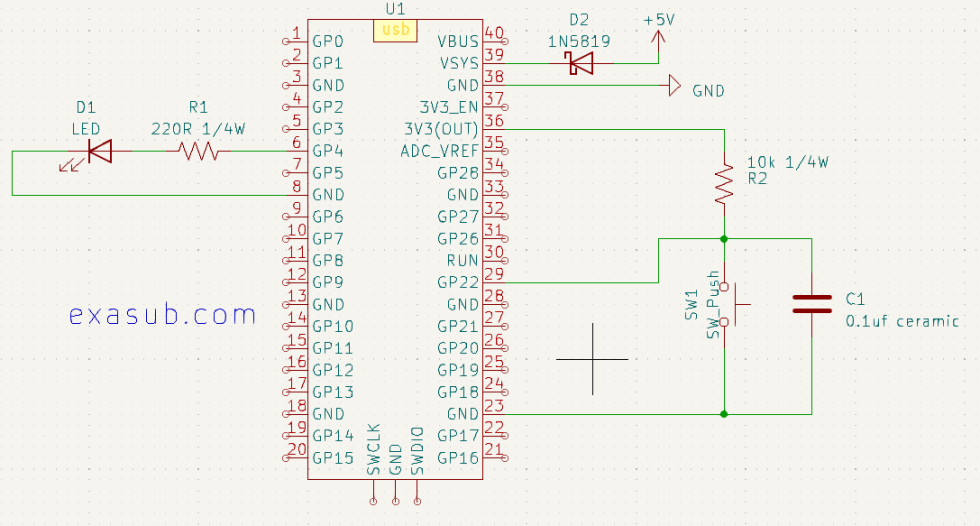
The Pico has internal pull up /down circuits inside it.

I have made this simple circuit for demonstration.

Schematic showing LED connected to GP4 and a Button connected to GP22

Button could be connected in two ways.

  1. Internal Pull Up/Down
  2. External Pull UP/Down

In the schematic i connected a button to GP22 using a external pull up of resistor 10k. I also used a capacitor in parallel with the button to debounce the button externally.

Using a external pull-up resistor can also help to protect the GPIO pin from damage due to excessive current flow. Without a pull-up resistor, a short circuit or other electrical fault in the switch or button could potentially allow a large current to flow through the GPIO pin, damaging it or the microcontroller itself.

Sample Code

import machine

# Set up the button on GPIO22 with external pull-up resistor
button = machine.Pin(22, machine.Pin.IN, machine.Pin.PULL_UP)

# Set up the LED on GPIO4
led = machine.Pin(4, machine.Pin.OUT)

# Loop forever
while True:
    # Read the current button value
    curr_button = button.value()

    # If the button is pressed, turn on the LED
    if curr_button == 0:
        led.value(1)
    # Otherwise, turn off the LED
    else:
        led.value(0)