Posted on Leave a comment

For Loops in MicroPython on Raspberry Pi Pico

For loops are one of the most commonly used loops in programming, including MicroPython on Raspberry Pi Pico. They allow you to repeat a set of instructions a specific number of times, making your code more efficient and concise.

In MicroPython, a for loop is used to iterate over a sequence of values, such as a list, tuple, or string. The general syntax for a for loop in MicroPython is as follows:

for variable in sequence:
    # Code to execute for each item in the sequence

Here, variable is a temporary variable that takes on the value of each item in the sequence. The code block under the for statement is executed for each item in the sequence, with variable taking on the value of each item in turn.

For example, let’s say we have a list of numbers and we want to print each number in the list:

numbers = [1, 2, 3, 4, 5]

for num in numbers:
    print(num)

In this code, num takes on the value of each item in the numbers list, and the print statement outputs each number in turn.

In addition to lists, for loops can also be used with other sequences such as tuples and strings. For example:

name = "John"

for char in name:
    print(char)

This code outputs each character in the string name, one character per line.

You can also use the built-in range() function with for loops in MicroPython. The range() function returns a sequence of numbers starting from 0 (by default) and incrementing by 1, up to a specified number. For example:

for i in range(5):
    print(i)

This code outputs the numbers 0 through 4, one number per line.

You can also specify a starting value and a step size for the range() function. For example:

for i in range(1, 10, 2):
    print(i)

This code outputs the odd numbers from 1 to 9, one number per line.

Posted on Leave a comment

While Loops in MicroPython on Raspberry Pi Pico

While loops in MicroPython on Raspberry Pi Pico are used to execute a block of code repeatedly as long as a certain condition is true. The general syntax for a while loop is:

while condition:
    # code to execute

The condition is checked at the beginning of each iteration. If the condition is true, the code inside the loop is executed. Once the code has been executed, the condition is checked again, and the loop continues until the condition is false.

Here’s an example of a simple while loop:

i = 0
while i < 5:
    print(i)
    i += 1

In this example, the loop will continue to execute as long as i is less than 5. Inside the loop, the current value of i is printed, and i is incremented by 1. The loop will continue until i reaches 5, at which point the condition i < 5 will be false, and the loop will terminate.

It’s important to make sure that the condition in a while loop will eventually become false, otherwise the loop will continue to execute indefinitely, which is known as an infinite loop. An infinite loop can cause your program to hang or crash, so it’s important to make sure that your loop will eventually terminate.

Here’s an example of an infinite loop:

i = 0
while i < 5:
    print(i)

In this example, the condition i < 5 will always be true, since i is never incremented. This will cause the loop to continue to execute indefinitely, which is not what we want.

While loops can be useful for a variety of tasks, such as reading data from sensors, controlling motors, or performing other repetitive tasks. By using while loops, you can make your code more efficient and easier to read.

Posted on Leave a comment

Introduction to Loops in MicroPython on Raspberry Pi Pico

Loops are an essential part of any programming language, including MicroPython on Raspberry Pi Pico. They allow you to execute a block of code repeatedly, saving you time and effort. In this article, we’ve introduced you to the two types of loops in MicroPython: for loops and while loops.

What are Loops?
A loop is a programming construct that allows you to execute a block of code repeatedly until a specific condition is met. There are two types of loops in MicroPython: for loops and while loops.

For Loops
A for loop is used when you want to execute a block of code a fixed number of times. The syntax of a for loop in MicroPython is as follows:

for variable in sequence:
    # Code to execute

The variable is assigned to each element of the sequence in turn, and the code inside the loop is executed. Here’s an example:

for i in range(5):
    print(i)

This code will print the numbers from 0 to 4.

While Loops
A while loop is used when you want to execute a block of code repeatedly until a specific condition is met. The syntax of a while loop in MicroPython is as follows:

while condition:
    # Code to execute

The code inside the loop will be executed repeatedly until the condition becomes false. Here’s an example:

i = 0
while i < 5:
    print(i)
    i += 1

The code first initializes the value of i to 0. Then it enters the while loop and checks if the value of i is less than 5. Since i is initially 0, the condition is true and the loop begins.

The loop prints the current value of i using the print() function and then increments the value of i by 1 using the += operator. This process repeats until the value of i is no longer less than 5, at which point the loop ends and the program continues with the rest of the code.

When you run this code in a MicroPython environment such as Thonny IDE, the output will be:

0 1 2 3 4

This is because the loop executes five times, with the value of i being printed on each iteration.

Posted on Leave a comment

Conditional Statements in MicroPython on Raspberry Pi Pico

Conditional statements in MicroPython on Raspberry Pi Pico are used to make decisions based on certain conditions. They allow us to execute a block of code only if a certain condition is true, or to execute a different block of code if the condition is false.

In MicroPython, we use the if, elif, and else keywords to create conditional statements. The general syntax for an if statement is:

if condition:
    # Code to execute if condition is True

If the condition is true, then the code inside the block is executed. If the condition is false, then the code inside the block is skipped.

Here’s an example of an if statement:

temperature = 25

if temperature > 30:
    print("It's hot outside!")

In this example, the condition temperature > 30 is false, so the code inside the block is not executed.

We can also use the else keyword to specify what code should be executed if the condition is false:

temperature = 25

if temperature > 30:
    print("It's hot outside!")
else:
    print("It's not that hot outside.")

In this case, since the condition is false, the code inside the else block is executed, and the output would be “It’s not that hot outside.”

We can also use the elif keyword to check multiple conditions:

temperature = 25

if temperature > 30:
    print("It's hot outside!")
elif temperature > 20:
    print("It's warm outside.")
else:
    print("It's not that hot outside.")

In this example, the first condition is false, so the elif condition is checked. Since temperature > 20 is true, the code inside the elif block is executed, and the output would be “It’s warm outside.”

Conditional statements can also be nested inside each other, to create more complex logic. For example:

x = 5
y = 10

if x > 0:
    if y > 0:
        print("Both x and y are positive.")
    else:
        print("x is positive but y is not.")
else:
    if y > 0:
        print("y is positive but x is not.")
    else:
        print("Both x and y are negative.")

In this example, the output would be “Both x and y are positive.” since both x and y are greater than 0.

elif statements can be nested in Python and MicroPython on Raspberry Pi Pico. You can use them to create more complex conditions that depend on multiple variables or factors.

Here’s an example of nested elif statements in MicroPython on Raspberry Pi Pico:

x = 5
y = 10

if x > y:
    print("x is greater than y")
elif x < y:
    print("x is less than y")
    if x < 0:
        print("x is negative")
    elif x == 0:
        print("x is zero")
    else:
        print("x is positive")
else:
    print("x is equal to y")

In this example, if x is less than y, the program checks whether x is negative, zero, or positive using nested elif statements. If x is greater than y, the program prints a message saying so. And if x is equal to y, the program prints a message saying that as well.

Note that when you nest elif statements, you must make sure that the indentation is correct to avoid syntax errors.

Posted on 1 Comment

Variables and Data Types in MicroPython on Raspberry Pi Pico

Variables and data types are fundamental concepts in programming. In MicroPython, just like in any programming language, variables are used to store data values and data types define the kind of data that can be stored.

In this tutorial, we will explore variables and data types in MicroPython on Raspberry Pi Pico.

Variables in MicroPython

Variables in MicroPython are used to store data values such as numbers, strings, and boolean values. A variable is simply a named reference to a value.

To create a variable, you simply assign a value to a name using the equals sign (=). For example:

x = 5

In this case, the variable x is assigned the value of 5.

You can also assign values to multiple variables at once, like this:

x, y, z = 5, "Hello", True

This assigns the value of 5 to the variable x, the string “Hello” to the variable y, and the boolean value True to the variable z.

Further Explanation

x, y, z = 5, “Hello”, True is a way of assigning values to multiple variables at once in Python. In this case, the values 5, “Hello”, and True are assigned to the variables x, y, and z respectively.

This syntax is known as “tuple unpacking”. The values on the right-hand side of the equals sign are packed into a tuple, which is then unpacked and assigned to the variables on the left-hand side.

Essentially, it’s the same as writing:

my_tuple = (5, "Hello", True)
x = my_tuple[0]
y = my_tuple[1]
z = my_tuple[2]

But using tuple unpacking is a more concise and readable way to assign values to multiple variables at once.

Data Types in MicroPython

MicroPython has several built-in data types that define the kind of data that can be stored in a variable. These include:

  • Integer: whole numbers, such as 5 or -3.
  • Float: decimal numbers, such as 3.14 or -2.5.
  • String: a sequence of characters, such as “Hello” or “123”.
  • Boolean: a value that is either True or False.
  • List: a collection of values, such as [1, 2, 3] or [“apple”, “banana”, “orange”].
  • Tuple: a collection of values, like a list, but cannot be modified once created, such as (1, 2, 3) or (“apple”, “banana”, “orange”).
  • Dictionary: a collection of key-value pairs, such as {“name”: “John”, “age”: 30}.

To determine the data type of a variable, you can use the type() function, like this:

This will output <class ‘int’>, indicating that x is an integer.

x = 5
print(type(x))  # Output: <class 'int'>
Posted on Leave a comment

How to Read internal temperature sensor of Raspberry Pi Pico using Thonny IDE

The internal temperature sensor of RP2040 is read using micropython. The Thonny IDE is used in Windows environment.

The temperature sensor is connected to Channel number 4 of the ADC.

But since this is a rather small implementation using Thonny IDE, it does most of the interfacing related code in the background.

Code

import machine
import time

"""
Function Name: Read internal temperature sensor
Description: This function reads the internal temperature sensor of RP2040 chip.
             The temperature sensor measures the Vbe voltage of a biased bipolar diode,
             connected to the fifth ADC channel (AINSEL=4).
"""
def read_internal_temperature_sensor():
    tsi = machine.ADC(machine.ADC.CORE_TEMP)
    temp = tsi.read_u16() * (3.3 / (65535))
    temp = 27 - (temp - 0.706)/0.001721
    return temp

while True:
    #reads the temprature and prints it
    print("Temperature: ", read_internal_temperature_sensor())
    #Create a dealy of 1 second
    time.sleep(1)
Posted on Leave a comment

How to setup Raspberry Pi Pico using Thonny IDE on windows and Blink onboard LED

First you have to install micropython on your raspberry pi pico board.
Follow the steps shown in the video.

To blink the onboard LED you can follow these steps:

  1. Connect your Raspberry Pi Pico to your Windows computer using a micro USB cable.
  2. Open Thonny IDE on your Windows computer.
  3. Click on the “File” menu and select “New”.
  4. In the new window, enter the following code:
import machine
import time

led_onboard = machine.Pin(25, machine.Pin.OUT)

while True:
    led_onboard.toggle()
    time.sleep(1)
  1. Save the file with a meaningful name and the “.py” extension.
  2. Click on the “Run” menu and select “Run current script” or press the “F5” key.
  3. Thonny IDE will run the code and the onboard LED of Raspberry Pi Pico will start blinking at a frequency of 1 second.

That’s it! You have successfully blinked the onboard LED of Raspberry Pi Pico using Thonny IDE on Windows.

Posted on Leave a comment

How to blink onboard LED on Raspberry Pi Pico W using Thonny IDE in Windows

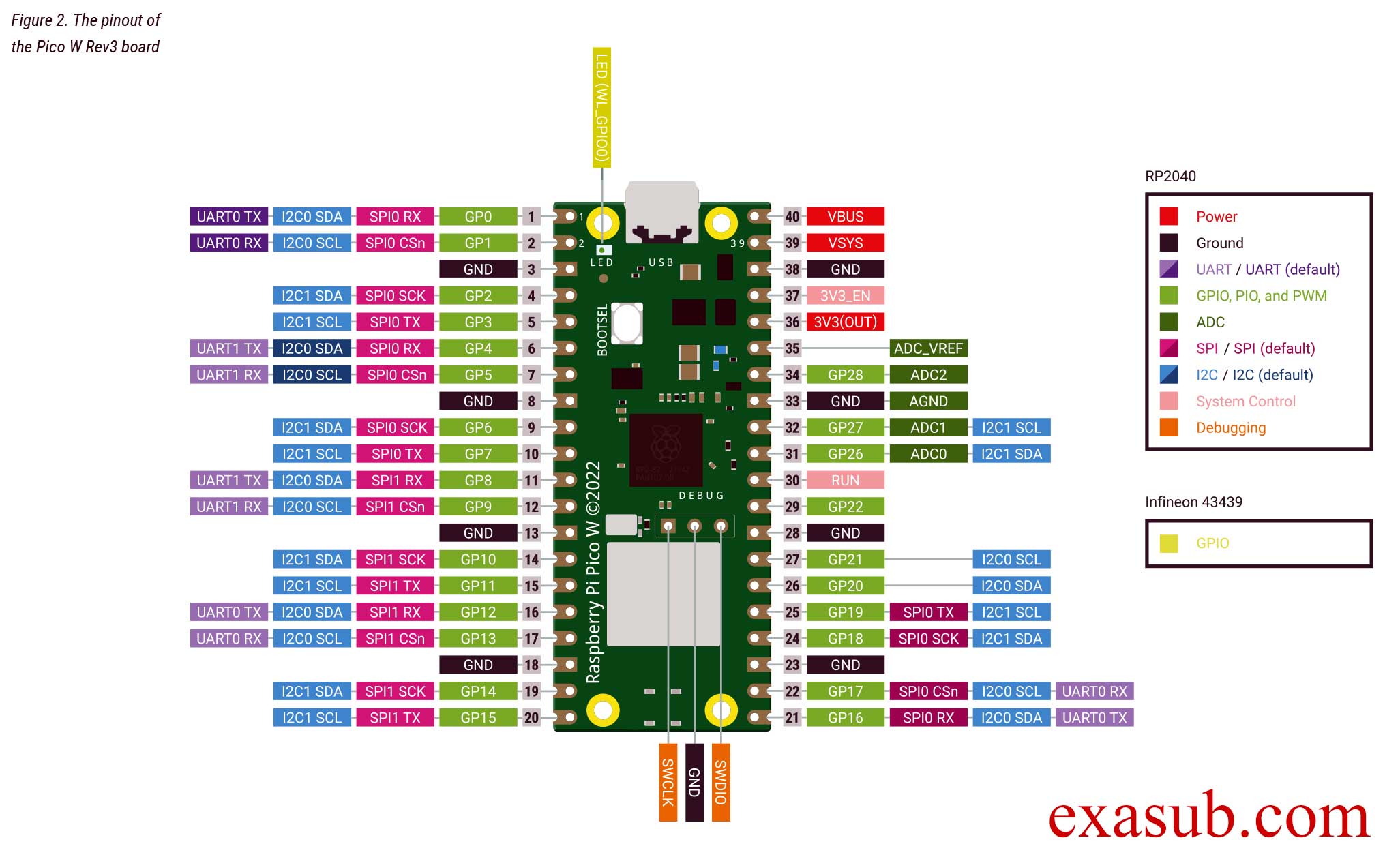
The raspberry pi pico w has a LED on it.
This LED is not connected to the GPIO pins of RP2040 microcontroller directly.

As you can see in the image of the pinout taken from the official datasheet.
The onboard LED is connected to a pin ‘WL_GPIO0’.
WL_GPIO0 is an internal pin.

There are different ways to program the pico W.
The easiest method is to install thonny IDE. And install micropython on the pico w.

Download Thonny IDE

After you have installed thonny. Now connect you raspberry pi pico w board to the computer USB port while holding the onboard BOOTSEL button. Then follow the steps shown in the following images.

After you have done the above steps. You now have to install a MicroPython library.

picozero is a MicroPython library which has functions for Wifi and other RP2040 chip.

To complete the projects in this path, you need to install the picozero library as a Thonny package.

In Thonny, choose Tools > Manage packages.

Code

import machine
import time

# create a Pin object to control the LED on pin 'WL_GPIO0'
led_pin = machine.Pin('WL_GPIO0', machine.Pin.OUT)

# enter an infinite loop
while True:
    # set the LED pin to a high (on) state
    led_pin.value(1)
    # pause the program for one second
    time.sleep(1)
    # set the LED pin to a low (off) state
    led_pin.value(0)
    # pause the program for one second
    time.sleep(1)

In this program, we first import the machine module and the time module. The machine module provides access to hardware-level features on the Raspberry Pi Pico, while the time module provides functions for time-related operations.

Next, we create a Pin object called led_pin to control the LED connected to the pin labeled ‘WL_GPIO0’. The machine.Pin() function is used to create the led_pin object, with the first argument specifying the pin label and the second argument specifying that the pin is an output pin, i.e. we can set its state to high or low.

Then, we enter an infinite loop using the while True: statement. Within the loop, we use the value() method of the led_pin object to set the state of the LED pin to high (on) or low (off), with a one second delay between each state change using the time.sleep() function.

Comments are added to explain each line of code and make it easier to understand the purpose and function of the program.

Posted on Leave a comment

Board Specification of Raspberry Pi Model 3b+

Overview of the Raspberry Pi 3B+ board

  1. Processor and Memory
    • CPU: Broadcom BCM2837B0, Cortex-A53 (64-bit)
    • Clock speed: 1.4 GHz
    • RAM: 1GB LPDDR2 SDRAM
    • The Raspberry Pi 3B+ is powered by a Broadcom BCM2837B0 chipset, which includes a 1.4 GHz 64-bit quad-core ARM Cortex-A53 CPU.
    • The BCM2837B0 also includes a VideoCore IV GPU, which is capable of hardware-accelerated video decoding and encoding, 3D graphics rendering, and image processing.
    • The Raspberry Pi 3B+ comes with 1 GB of LPDDR2 SDRAM memory, which is shared between the CPU and GPU.
    • The LPDDR2 SDRAM on the Raspberry Pi 3B+ runs at 900 MHz, providing a maximum memory bandwidth of 7.2 GB/s.
    • The Raspberry Pi 3B+ also supports virtual memory, which allows it to use a portion of its SD card storage as swap space to increase the available memory.
    • The BCM2837B0 chipset includes a level 2 (L2) cache of 512 KB, which is shared between all four CPU cores.
    • The L2 cache on the Raspberry Pi 3B+ runs at the same speed as the CPU cores (1.4 GHz), providing fast access to frequently used data and instructions.
    • The BCM2837B0 chipset also includes a hardware random number generator, which can be used for cryptographic applications that require secure and unpredictable random numbers.
  2. Connectivity
    • Ethernet: Gigabit Ethernet over USB 2.0 (maximum throughput 300 Mbps)
    • Wireless: 2.4GHz and 5GHz IEEE 802.11.b/g/n/ac wireless LAN
    • Bluetooth: Bluetooth 4.2, Bluetooth Low Energy (BLE)
  3. Storage
    • microSD card slot for loading operating system and data storage
    • The Raspberry Pi 3B+ has a microSD card slot that supports the use of microSD, microSDHC, and microSDXC cards.
    • The microSD card slot on the Raspberry Pi 3B+ supports UHS-I bus speeds, which can provide faster data transfer rates than standard SD cards.
    • The Raspberry Pi 3B+ also supports booting from USB mass storage devices, such as USB flash drives or external hard drives.
    • The Raspberry Pi 3B+ supports the use of file systems such as ext4, NTFS, and FAT32 on external storage devices.
    • The maximum recommended microSD card size for the Raspberry Pi 3B+ is 32 GB, although larger cards can be used with some limitations.
  4. Multimedia
    • Video: H.264 (up to 1080p60), MPEG-4 (up to 1080p30), H.263 (up to 1080p30)
    • Audio: Stereo audio via 3.5mm jack, or HDMI
  5. GPIO
    • 40-pin GPIO header with support for SPI, I2C, and UART protocols
    • 40 GPIO pins are available in two rows of 20 pins each on the GPIO header.
    • The GPIO pins on the Raspberry Pi 3B+ operate at 3.3V logic levels and are not 5V tolerant. Connecting 5V devices directly to the GPIO pins can damage the Raspberry Pi.
    • The GPIO pins can source or sink up to 16 mA of current.
    • The GPIO pins can be configured as inputs or outputs, and can also be used for hardware PWM (Pulse Width Modulation) and hardware SPI (Serial Peripheral Interface) communication.
    • The GPIO pins are grouped into several GPIO banks, each with its own set of features and capabilities. These banks include the General Purpose Input/Output (GPIO) bank, the Serial Peripheral Interface (SPI) bank, the Inter-Integrated Circuit (I2C) bank, and the Universal Asynchronous Receiver-Transmitter (UART) bank.
    • The GPIO pins on the Raspberry Pi 3B+ can be accessed using a variety of programming languages and libraries, including Python, C, C++, and Node.js. The RPi.GPIO library, which is included with the Raspbian operating system, provides a simple and easy-to-use interface for controlling the GPIO pins using Python. Additionally, it is possible to access the GPIO pins using bare metal programming, which involves programming the Raspberry Pi directly without using an operating system. This method provides more control over the hardware and can be useful in applications where performance and real-time control are critical.
  6. Power
    • 5V DC via micro-USB connector, or GPIO header
  7. Form Factor
    • Dimensions: 88 x 56 x 19.5 mm
    • Weight: 46g
Posted on Leave a comment

Introduction to Bare Metal Programming on Raspberry Pi 3b+

What is Bare Metal Programming?

Bare metal programming is the practice of programming a computer or microcontroller without using an operating system or any other software layer between the hardware and the code. It involves writing code that directly interacts with the hardware, using low-level programming languages such as Assembly or C. This allows for greater control over the hardware, as you have direct access to the processor, memory, and other resources.

In the case of Raspberry Pi, bare metal programming involves writing code directly to the hardware, using low-level programming languages such as Assembly or C.

AdvantagesDisadvantages
Provides direct access to the hardware, enabling greater control over system resourcesRequires advanced knowledge of low-level programming languages such as Assembly or C
Avoids the overhead and complexity of operating systems and middlewareRequires more effort and time to develop and maintain code compared to high-level programming languages or using an operating system
Enables faster and more efficient code executionLack of abstraction and protection from hardware errors can lead to more complex and error-prone code
Ideal for applications with strict timing requirements or low-latency communication with hardware peripheralsDifficult to integrate with higher-level software stacks or libraries

To get started with bare metal programming on Raspberry Pi 3B+, you’ll need the following tools:

  1. Raspberry Pi 3B+: This is the main hardware component you’ll need to get started with bare metal programming on Raspberry Pi.
  2. MicroSD card: You’ll need a MicroSD card to store the operating system and your code. A capacity of 8GB or higher is recommended.
  3. Cross-compiler: This is a toolchain that allows you to compile your code on a different platform (such as a PC) and generate code that can run on the ARM-based Raspberry Pi. You can use the GNU ARM Embedded Toolchain or other cross-compilers.
  4. Text editor: You’ll need a text editor to write and edit your code. Some popular free options include Notepad++, Nano, and Visual Studio Code.