Posted on Leave a comment

Concatenating Strings in MicroPython on Raspberry Pi Pico

In programming, concatenation is the process of combining two or more strings into a single string. This operation is commonly used in MicroPython on Raspberry Pi Pico to create dynamic messages and strings that can be used in various applications. In this blog post, we will explore the concept of string concatenation in MicroPython and how to use it in your code.

Concatenating Strings

In MicroPython, you can concatenate two or more strings using the + operator. For example:

string1 = "Hello"
string2 = " world!"
result = string1 + string2
print(result) # Output: Hello world!

In this example, we first define two strings string1 and string2. We then concatenate them using the + operator and store the result in a new variable result. Finally, we print the value of result, which gives us the concatenated string "Hello world!".

You can also concatenate multiple strings at once using the + operator. For example:

string1 = "Hello"
string2 = " world"
string3 = "!"
result = string1 + string2 + string3
print(result) # Output: Hello world!

In this example, we define three strings string1, string2, and string3. We then concatenate them using the + operator and store the result in a new variable result. Finally, we print the value of result, which gives us the concatenated string "Hello world!".

Concatenating Strings with Variables

In MicroPython, you can also concatenate strings with variables. For example:

name = "Alice"
message = "Hello, " + name + "!"
print(message) # Output: Hello, Alice!

In this example, we define a variable name with the value "Alice". We then concatenate the string "Hello, " with the value of the variable name using the + operator and store the result in a new variable message. Finally, we print the value of message, which gives us the concatenated string "Hello, Alice!".

Concatenating Strings with Numbers

In MicroPython, you can also concatenate strings with numbers using the str() function. For example:

age = 25
message = "I am " + str(age) + " years old."
print(message) # Output: I am 25 years old.

In this example, we define a variable age with the value 25. We then concatenate the string "I am " with the value of the variable age, which is converted to a string using the str() function. We then concatenate the string " years old." using the + operator and store the result in a new variable message. Finally, we print the value of message, which gives us the concatenated string "I am 25 years old.".

Conclusion

Concatenating strings is an important concept in MicroPython on Raspberry Pi Pico that is used in many applications. By using the + operator, you can easily concatenate strings and create dynamic messages and strings in your code. With the knowledge of string concatenation, you can create more powerful and complex programs.

Posted on Leave a comment

String manipulation in MicroPython on Raspberry Pi Pico

String manipulation is a common task in programming, including in MicroPython on Raspberry Pi Pico. It involves modifying, searching, and extracting data from strings. In this blog post, we will explore string manipulation techniques in MicroPython and how to use them effectively.

Modifying Strings

In MicroPython, strings are immutable, which means that once a string is defined, it cannot be modified. However, you can create a new string with the desired modification. One of the most common string modification tasks is to replace one substring with another. This is done using the replace() method. For example:

string = "Hello, world!"
new_string = string.replace("world", "MicroPython")
print(new_string) # Output: Hello, MicroPython!

The replace() method replaces all occurrences of the specified substring with the new substring.

Another common task is to convert a string to all uppercase or lowercase. This is done using the upper() and lower() methods, respectively. For example:

string = "Hello, world!"
upper_string = string.upper()
lower_string = string.lower()
print(upper_string) # Output: HELLO, WORLD!
print(lower_string) # Output: hello, world!

Searching Strings

Searching for a substring within a string is a common task in programming. In MicroPython, you can use the find() method to search for a substring within a string. For example:

string = "Hello, world!"
substring = "world"
index = string.find(substring)
print(index) # Output: 7

The find() method returns the index of the first occurrence of the specified substring in the string, or -1 if the substring is not found.

substring not found
-1 means Substring not found

Extracting Data from Strings

Extracting a portion of a string is also a common task in programming. In MicroPython, you can use slicing to extract a portion of a string. For example:

string = "Hello, world!"
substring = string[7:]
print(substring) # Output: world!

The substring variable contains all characters in the original string from index 7 until the end.

You can also split a string into a list of substrings using the split() method. For example:

string = "The quick brown fox"
substring_list = string.split()
print(substring_list) # Output: ["The", "quick", "brown", "fox"]

The split() method splits the string at whitespace characters by default and returns a list of substrings.

String Formatting

String formatting is the process of inserting variables or values into a string. In MicroPython, you can use the format() method or f-strings to format strings. For example:

name = "Alice"
age = 25
string = "My name is {} and I am {} years old.".format(name, age)
print(string) # Output: My name is Alice and I am 25 years old.

f_string = f"My name is {name} and I am {age} years old."
print(f_string) # Output: My name is Alice and I am 25 years old.

The curly braces {} act as placeholders for variables or values that will be replaced during string formatting.

Conclusion
String manipulation is an important skill for any programmer, and MicroPython on Raspberry Pi Pico provides many useful tools for manipulating strings. By mastering these techniques, you can create more powerful and complex programs.

Posted on Leave a comment

Understanding string data types in MicroPython on Raspberry Pi Pico

Strings are one of the most commonly used data types in programming, including in MicroPython on Raspberry Pi Pico. In this blog post, we will explore the concept of string data types in MicroPython and how to work with them.

A string is a sequence of characters enclosed within single or double quotes. It can contain alphabets, numbers, and special characters. In MicroPython, strings are immutable, which means that once a string is defined, it cannot be modified. Instead, operations on strings create new strings.

To define a string in MicroPython, simply enclose the characters within single or double quotes. For example:

string1 = 'Hello, world!'
string2 = "Hello, again!"

Both string1 and string2 are examples of string variables in MicroPython.

In MicroPython, strings can also be indexed and sliced. The index of a string starts from 0 for the first character and increases by 1 for each subsequent character. To access a particular character in a string, simply use its index within square brackets. For example:

string = 'Hello, world!'
print(string[0])  # Output: H
print(string[4])  # Output: o

Slicing is the process of extracting a portion of a string. It is done by specifying the starting and ending indices within square brackets and separating them with a colon. For example:

string = 'Hello, world!'
print(string[0:5])  # Output: Hello
print(string[7:])  # Output: world!

The first slice string[0:5] extracts characters from index 0 up to index 5 but not including index 5, while the second slice string[7:] extracts all characters from index 7 until the end of the string.

String concatenation is the process of combining two or more strings into one. In MicroPython, it is done using the + operator. For example:

string1 = 'Hello,'
string2 = ' world!'
string3 = string1 + string2
print(string3)  # Output: Hello, world!

String formatting is another useful feature of strings in MicroPython. It allows you to insert variables or values into a string. The most common way to format a string in MicroPython is by using the % operator. For example:

name = 'Alice'
age = 25
print('My name is %s and I am %d years old.' % (name, age))

The %s and %d are placeholders for the string and integer variables name and age, respectively.

In conclusion, understanding string data types in MicroPython on Raspberry Pi Pico is essential for anyone working with strings in their code. With the knowledge of string manipulation and formatting, you can create more powerful and complex programs.

Posted on Leave a comment

Introduction to strings in MicroPython on Raspberry Pi Pico

Strings are a fundamental data type in programming, and they are no exception in MicroPython on Raspberry Pi Pico. A string is a sequence of characters enclosed in single or double quotes. Strings are used to represent text in programs, and they can be manipulated in various ways to achieve different results.

In this blog post, I will introduce you to strings in MicroPython on Raspberry Pi Pico. We will cover the basic concepts and syntax of strings, and provide examples of how to use them in your programs.

Basic syntax of strings in MicroPython

To create a string in MicroPython, simply enclose the text in single or double quotes. For example, the following line creates a string containing the text “Hello, world!”:

my_string = "Hello, world!"

You can also create an empty string by assigning an empty pair of quotes to a variable, like this:

empty_string = ""

String operations in MicroPython

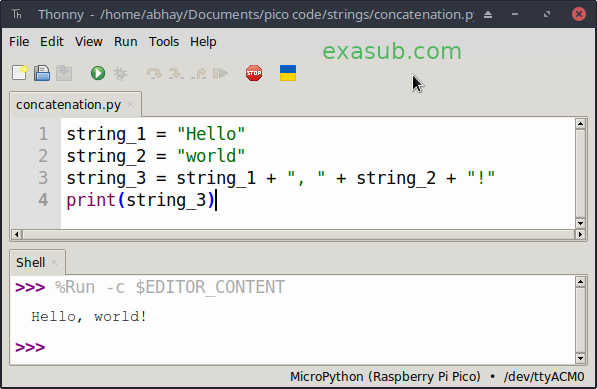
Strings can be concatenated, sliced, and indexed in MicroPython, just like in any other programming language. Here are some examples:

Concatenation:

string_1 = "Hello"
string_2 = "world"
string_3 = string_1 + ", " + string_2 + "!"
print(string_3)

Output: Hello, world!

Slicing:

my_string = "Hello, world!"
print(my_string[0:5])

Output: Hello

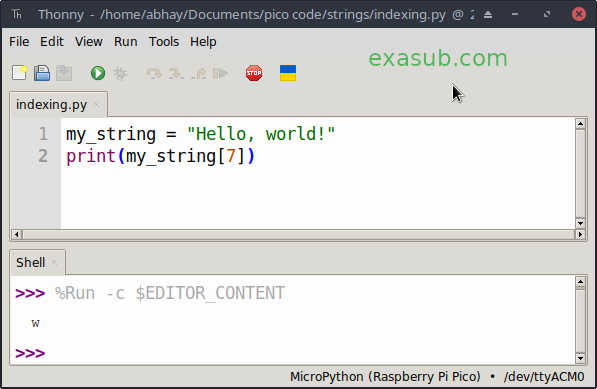
Indexing:

my_string = "Hello, world!"
print(my_string[7])

Output: w

String methods in MicroPython

MicroPython provides a set of built-in string methods that allow you to manipulate strings in various ways. Here are some examples:

Length:

my_string = "Hello, world!"
print(len(my_string))

Output: 13

Upper case:

my_string = "Hello, world!"
print(my_string.upper())

Output: HELLO, WORLD!

Lower case:

my_string = "Hello, world!"
print(my_string.lower())

Output: hello, world!

Splitting:

my_string = "Hello, world!"
print(my_string.split())

Output: [‘Hello,’, ‘world!’]

Conclusion

Strings are a powerful and versatile data type in programming, and understanding how to use them is essential for any programmer. In this blog post, we have introduced you to strings in MicroPython on Raspberry Pi Pico. We have covered the basic concepts and syntax of strings, as well as provided examples of string operations and methods. With this knowledge, you can begin working with strings in your own MicroPython programs.

Posted on Leave a comment

Functions in MicroPython on Raspberry Pi Pico

Functions are a way to make your code more organized and easier to understand. They are like little machines that you can use over and over again in your code.

To create a function, you need to give it a name and then write what it does. You can also give it some inputs, like numbers or strings, that it will use to do its job.

For example, imagine you wanted to make a function that adds two numbers together. You could call it “add” and write the code like this:

def add(num1, num2):
    result = num1 + num2
    return result

Now, whenever you want to add two numbers together, you can just call the “add” function and give it the two numbers you want to add:

result = add(5, 7)

The “add” function will take those two numbers, add them together, and then return the result, which you can store in a variable called “result”.

Functions are really helpful because they can make your code shorter, easier to read, and easier to test.

Examples to try

Here are some more examples of functions in MicroPython on Raspberry Pi Pico:

Example 1: Adding Two Numbers

def add_numbers(a, b):
    result = a + b
    return result

# Test the function
print(add_numbers(2, 3)) # Output: 5
print(add_numbers(5, 10)) # Output: 15

Example 2: Counting Even Numbers

def count_even_numbers(numbers):
    count = 0
    for num in numbers:
        if num % 2 == 0:
            count += 1
    return count

# Test the function
numbers = [1, 2, 3, 4, 5, 6, 7, 8, 9, 10]
print(count_even_numbers(numbers)) # Output: 5

Example 3: Finding the Maximum Number in a List

def find_max(numbers):
    max_num = numbers[0]
    for num in numbers:
        if num > max_num:
            max_num = num
    return max_num

# Test the function
numbers = [3, 9, 2, 5, 1, 8, 4, 7, 6]
print(find_max(numbers)) # Output: 9
Posted on Leave a comment

How to interface 0.96″ OLED display with Raspberry Pi Pico without library using I2C in Micropython

The 0.96-inch OLED screen is monochromatic blue. Which means it has only blue light. You can either switch on the led to make the text blue or you can invert the in which background is blue and the text black.

The OLED uses a ssd1306 IC. Which is a 128 x 64 Dot Matrix OLED/PLED Segment/Common Driver with Controller.

The code written does not need any library to be installed.

I made the following connections

OLED		RPI Pico

SDA	->	RP0
SCK	->	RP1
VDD	->	3v3
GND	->	GND
		
Note: RP0 and RP1 are pin number 0 and 1 on the pico develeopment board.

Code

# MicroPython SSD1306 OLED driver, I2C and SPI interfaces
import machine
import time
import framebuf
import utime

# register definitions
SET_CONTRAST        = const(0x81)
SET_ENTIRE_ON       = const(0xa4)
SET_NORM_INV        = const(0xa6)
SET_DISP            = const(0xae)
SET_MEM_ADDR        = const(0x20)
SET_COL_ADDR        = const(0x21)
SET_PAGE_ADDR       = const(0x22)
SET_DISP_START_LINE = const(0x40)
SET_SEG_REMAP       = const(0xa0)
SET_MUX_RATIO       = const(0xa8)
SET_COM_OUT_DIR     = const(0xc0)
SET_DISP_OFFSET     = const(0xd3)
SET_COM_PIN_CFG     = const(0xda)
SET_DISP_CLK_DIV    = const(0xd5)
SET_PRECHARGE       = const(0xd9)
SET_VCOM_DESEL      = const(0xdb)
SET_CHARGE_PUMP     = const(0x8d)


class SSD1306:
    def __init__(self, width, height, external_vcc):
        self.width = width
        self.height = height
        self.external_vcc = external_vcc
        self.pages = self.height // 8
        # Note the subclass must initialize self.framebuf to a framebuffer.
        # This is necessary because the underlying data buffer is different
        # between I2C and SPI implementations (I2C needs an extra byte).
        self.poweron()
        self.init_display()

    def init_display(self):
        for cmd in (
            SET_DISP | 0x00, # off
            # address setting
            SET_MEM_ADDR, 0x00, # horizontal
            # resolution and layout
            SET_DISP_START_LINE | 0x00,
            SET_SEG_REMAP | 0x01, # column addr 127 mapped to SEG0
            SET_MUX_RATIO, self.height - 1,
            SET_COM_OUT_DIR | 0x08, # scan from COM[N] to COM0
            SET_DISP_OFFSET, 0x00,
            SET_COM_PIN_CFG, 0x02 if self.height == 32 else 0x12,
            # timing and driving scheme
            SET_DISP_CLK_DIV, 0x80,
            SET_PRECHARGE, 0x22 if self.external_vcc else 0xf1,
            SET_VCOM_DESEL, 0x30, # 0.83*Vcc
            # display
            SET_CONTRAST, 0xff, # maximum
            SET_ENTIRE_ON, # output follows RAM contents
            SET_NORM_INV, # not inverted
            # charge pump
            SET_CHARGE_PUMP, 0x10 if self.external_vcc else 0x14,
            SET_DISP | 0x01): # on
            self.write_cmd(cmd)
        self.fill(0)
        self.show()

    def poweroff(self):
        self.write_cmd(SET_DISP | 0x00)

    def contrast(self, contrast):
        self.write_cmd(SET_CONTRAST)
        self.write_cmd(contrast)

    def invert(self, invert):
        self.write_cmd(SET_NORM_INV | (invert & 1))

    def show(self):
        x0 = 0
        x1 = self.width - 1
        if self.width == 64:
            # displays with width of 64 pixels are shifted by 32
            x0 += 32
            x1 += 32
        self.write_cmd(SET_COL_ADDR)
        self.write_cmd(x0)
        self.write_cmd(x1)
        self.write_cmd(SET_PAGE_ADDR)
        self.write_cmd(0)
        self.write_cmd(self.pages - 1)
        self.write_framebuf()

    def fill(self, col):
        self.framebuf.fill(col)

    def pixel(self, x, y, col):
        self.framebuf.pixel(x, y, col)

    def scroll(self, dx, dy):
        self.framebuf.scroll(dx, dy)

    def text(self, string, x, y, col=1):
        self.framebuf.text(string, x, y, col)


class SSD1306_I2C(SSD1306):
    def __init__(self, width, height, i2c, addr=0x3c, external_vcc=False):
        self.i2c = i2c
        self.addr = addr
        self.temp = bytearray(2)
        # Add an extra byte to the data buffer to hold an I2C data/command byte
        # to use hardware-compatible I2C transactions.  A memoryview of the
        # buffer is used to mask this byte from the framebuffer operations
        # (without a major memory hit as memoryview doesn't copy to a separate
        # buffer).
        self.buffer = bytearray(((height // 8) * width) + 1)
        self.buffer[0] = 0x40  # Set first byte of data buffer to Co=0, D/C=1
        self.framebuf = framebuf.FrameBuffer1(memoryview(self.buffer)[1:], width, height)
        super().__init__(width, height, external_vcc)

    def write_cmd(self, cmd):
        self.temp[0] = 0x80 # Co=1, D/C#=0
        self.temp[1] = cmd
        self.i2c.writeto(self.addr, self.temp)

    def write_framebuf(self):
        # Blast out the frame buffer using a single I2C transaction to support
        # hardware I2C interfaces.
        self.i2c.writeto(self.addr, self.buffer)

    def poweron(self):
        pass


i2c = machine.SoftI2C(scl=machine.Pin(1), sda=machine.Pin(0))

pin = machine.Pin(16, machine.Pin.OUT)
pin.value(0) #set GPIO16 low to reset OLED
pin.value(1) #while OLED is running, must set GPIO16 in high

oled_width = 128
oled_height = 64
oled = SSD1306_I2C(oled_width, oled_height, i2c)

oled.fill(0)
oled.text('hallo, ', 0, 0)
oled.text('exasub.com!', 0, 10)
def toggle(i):
    if i == 0:
        i = 1
    else:
        i = 0
    return i

i=0

while True:
    i = toggle(i)
    oled.invert(i)
    oled.show()
    utime.sleep(1)


Posted on 1 Comment

Using Loops to Iterate Over Data Structures in MicroPython on Raspberry Pi Pico

MicroPython on Raspberry Pi Pico provides several data structures for storing and manipulating data. These include lists, tuples, sets, and dictionaries. Loops are a powerful tool for iterating over these data structures and performing operations on their elements.

Let’s take a look at some examples of how loops can be used to iterate over data structures in MicroPython.

  1. Iterating over a List

A list is a collection of items, and we can iterate over it using a for loop. Here’s an example:

# Create a list of numbers
numbers = [1, 2, 3, 4, 5]

# Iterate over the list and print each number
for number in numbers:
    print(number)

In this example, we create a list of numbers and then iterate over it using a for loop. For each number in the list, we print it to the console.

  1. Iterating over a Tuple

A tuple is similar to a list, but it is immutable, which means it cannot be modified once it is created. Here’s an example of how to iterate over a tuple using a for loop:

# Create a tuple of fruits
fruits = ('apple', 'banana', 'cherry')

# Iterate over the tuple and print each fruit
for fruit in fruits:
    print(fruit)

In this example, we create a tuple of fruits and then iterate over it using a for loop. For each fruit in the tuple, we print it to the console.

  1. Iterating over a Set

A set is an unordered collection of unique items. We can iterate over a set using a for loop just like we do with lists and tuples. Here’s an example:

# Create a set of colors
colors = {'red', 'green', 'blue'}

# Iterate over the set and print each color
for color in colors:
    print(color)

In this example, we create a set of colors and then iterate over it using a for loop. For each color in the set, we print it to the console.

  1. Iterating over a Dictionary

A dictionary is a collection of key-value pairs. We can iterate over a dictionary using a for loop, but we need to use the items() method to access both the keys and values. Here’s an example:

# Create a dictionary of students and their grades
grades = {'Alice': 85, 'Bob': 90, 'Charlie': 95}

# Iterate over the dictionary and print each student and their grade
for student, grade in grades.items():
    print(f'{student}: {grade}')

In this example, we create a dictionary of students and their grades and then iterate over it using a for loop. For each student and their corresponding grade, we print them to the console.

Posted on Leave a comment

Loop Control Statements in MicroPython on Raspberry Pi Pico

Loop control statements are used to alter the normal flow of execution within loops. They can be used to skip iterations or terminate loops prematurely based on certain conditions. In MicroPython on Raspberry Pi Pico, there are three loop control statements: break, continue, and pass.

  1. Break statement:
    The break statement is used to terminate a loop prematurely. When a break statement is encountered within a loop, the loop is immediately exited and program execution continues with the statement immediately following the loop. The break statement can be used with both for and while loops.

Here’s an example:

for i in range(1, 11):
    if i == 5:
        break
    print(i)

In this example, the loop will iterate over the values from 1 to 10. However, when i equals 5, the break statement is encountered and the loop is terminated prematurely. As a result, only the values from 1 to 4 will be printed.

  1. Continue statement:
    The continue statement is used to skip the current iteration of a loop and move on to the next iteration. When a continue statement is encountered within a loop, the remaining statements within the loop for that iteration are skipped and the loop moves on to the next iteration. The continue statement can be used with both for and while loops.

Here’s an example:

for i in range(1, 11):
    if i % 2 == 0:
        continue
    print(i)

In this example, the loop will iterate over the values from 1 to 10. However, when i is even, the continue statement is encountered and the remaining statements for that iteration are skipped. As a result, only the odd values from 1 to 10 will be printed.

  1. Pass statement:
    The pass statement is used to do nothing. It can be used as a placeholder when a statement is required syntactically, but no action is needed. The pass statement is typically used when a block of code is not yet implemented but is required for the program to run without error.

Here’s an example:

for i in range(1, 11):
    pass

In this example, the loop will iterate over the values from 1 to 10. However, the pass statement does nothing, so the loop will simply run through all iterations without doing anything. The pass statement can be used with both for and while loops.

Loop control statements are a useful tool in programming, as they allow us to alter the normal flow of execution within loops based on certain conditions. The break statement can be used to terminate a loop prematurely, the continue statement can be used to skip the current iteration and move on to the next iteration, and the pass statement can be used as a placeholder when no action is needed.

Sure, here is an example of how you can use continue, pass, and break statements in a loop:

# Example of using loop control statements in MicroPython

# Loop from 1 to 10
for i in range(1, 11):
    # If i is even, skip to the next iteration
    if i % 2 == 0:
        continue

    # If i is 5, do nothing and continue to the next iteration
    if i == 5:
        pass

    # If i is greater than 8, break out of the loop
    if i > 8:
        break

    # Print the value of i
    print(i)

In this example, the continue statement is used to skip over even numbers in the loop. The pass statement is used to do nothing and simply continue to the next iteration when the value of i is 5. Finally, the break statement is used to exit the loop when the value of i becomes greater than 8.

When you run this code, you will see the following output:

1
3
7

As you can see, the even numbers (2, 4, 6, 8, and 10) are skipped over with the continue statement. The value of 5 does nothing with the pass statement, and the loop stops when the value of i reaches 9 because of the break statement.

Posted on Leave a comment

Nested Loops in MicroPython on Raspberry Pi Pico

Nested loops in MicroPython on Raspberry Pi Pico refer to the use of one loop inside another loop. The inner loop is executed multiple times for each iteration of the outer loop. This technique is useful when we want to perform repetitive tasks or calculations on a set of data.

To create nested loops in MicroPython on Raspberry Pi Pico, we simply need to place one loop inside another loop. Here’s an example:

for i in range(3):
    for j in range(2):
        print(i, j)

In this example, we have an outer loop that iterates from 0 to 2, and an inner loop that iterates from 0 to 1. For each iteration of the outer loop, the inner loop is executed twice. The output of this code would be:

0 0
0 1
1 0
1 1
2 0
2 1

We can also use nested loops to access and modify elements of a two-dimensional list or array. Here’s an example:

matrix = [[1, 2, 3], [4, 5, 6], [7, 8, 9]]

for row in matrix:
    for element in row:
        print(element)

In this example, we have a two-dimensional list called matrix. The outer loop iterates over each row of the matrix, while the inner loop iterates over each element in the current row. The output of this code would be:

1
2
3
4
5
6
7
8
9

Nested loops can also be used to perform more complex calculations or operations.

Posted on Leave a comment

For Loops in MicroPython on Raspberry Pi Pico

For loops are one of the most commonly used loops in programming, including MicroPython on Raspberry Pi Pico. They allow you to repeat a set of instructions a specific number of times, making your code more efficient and concise.

In MicroPython, a for loop is used to iterate over a sequence of values, such as a list, tuple, or string. The general syntax for a for loop in MicroPython is as follows:

for variable in sequence:
    # Code to execute for each item in the sequence

Here, variable is a temporary variable that takes on the value of each item in the sequence. The code block under the for statement is executed for each item in the sequence, with variable taking on the value of each item in turn.

For example, let’s say we have a list of numbers and we want to print each number in the list:

numbers = [1, 2, 3, 4, 5]

for num in numbers:
    print(num)

In this code, num takes on the value of each item in the numbers list, and the print statement outputs each number in turn.

In addition to lists, for loops can also be used with other sequences such as tuples and strings. For example:

name = "John"

for char in name:
    print(char)

This code outputs each character in the string name, one character per line.

You can also use the built-in range() function with for loops in MicroPython. The range() function returns a sequence of numbers starting from 0 (by default) and incrementing by 1, up to a specified number. For example:

for i in range(5):
    print(i)

This code outputs the numbers 0 through 4, one number per line.

You can also specify a starting value and a step size for the range() function. For example:

for i in range(1, 10, 2):
    print(i)

This code outputs the odd numbers from 1 to 9, one number per line.