Posted on — Leave a comment

How to setup ESP32 on Arduino IDE

Prerequisites: Before we dive into the setup process, there are a few things you’ll need to gather:

  1. An ESP32 development board: You can find numerous options available online, including the ESP32 DevKitC, NodeMCU-32S, and Wemos D1 R32, among others.
  2. A USB cable: Ensure you have a suitable USB cable to connect your ESP32 board to your computer.
  3. Arduino IDE: Download and install the latest version of the Arduino IDE from the official Arduino website (https://www.arduino.cc/en/software). The IDE provides an easy-to-use interface for writing and uploading code to your ESP32.

Now that you have everything you need, let’s get started with the setup process.

Step 1: Install the ESP32 Board in Arduino IDE:

  1. Open the Arduino IDE.
  2. Go to “File” > “Preferences” to open the Preferences window.
  3. In the “Additional Boards Manager URLs” field, add the following URL:
https://dl.espressif.com/dl/package_esp32_index.json
  1. Click “OK” to save the preferences.
  2. Navigate to “Tools” > “Board” > “Boards Manager.”
  3. In the Boards Manager window, search for “ESP32” and select the “esp32” package by Espressif Systems.
  4. Click the “Install” button to begin the installation process.
  5. Once the installation is complete, close the Boards Manager window.

Step 2: Select the ESP32 Board:

  1. Connect your ESP32 board to your computer using the USB cable.
  2. In the Arduino IDE, go to “Tools” > “Board” and select your ESP32 board from the list of available options. Choose the appropriate board variant based on the specific ESP32 module you are using.

Step 3: Choose the Correct Port:

  1. Navigate to “Tools” > “Port” and select the port to which your ESP32 board is connected. The port name will vary depending on your operating system.
    • On Windows, it will typically be in the format “COMX” (e.g., COM3, COM4).
    • On macOS, it will usually appear as “/dev/cu.SLAB_USBtoUART” or “/dev/cu.usbserial-XXXX” (X represents some alphanumeric characters).
    • On Linux, it may appear as “/dev/ttyUSBX” or “/dev/ttyACMX” (X represents a number).

Step 4: Upload a Test Sketch:

  1. Open the “Blink” example sketch by going to “File” > “Examples” > “01.Basics” > “Blink.”
  2. Make any necessary modifications to the sketch if required.
  3. Click on the “Upload” button (the rightward-pointing arrow) to compile and upload the sketch to your ESP32 board.
  4. Wait for the upload process to complete.
  5. Once the upload is successful, you should see the onboard LED blinking at a regular interval.

Congratulations! You have successfully set up your ESP32 board on the Arduino IDE. You are now ready to unleash the power of the ESP32 and start

Troubleshoot

ImportError: No module named serial in Linux

Traceback (most recent call last):
  File "/home/abhay/.arduino15/packages/esp32/tools/esptool_py/3.0.0/esptool.py", line 38, in <module>
    import serial
ImportError: No module named serial

exit status 1

Compilation error: exit status 1

here’s an alternative solution you can try:

  1. Install pySerial via apt-get:
  • Open a terminal.
  • Run the following command to install pySerial using apt-get:
sudo apt-get install python-serial
  1. Restart Arduino IDE: Close the Arduino IDE completely and then open it again.
  2. Upload the code to the ESP32 board: Try uploading your code to the ESP32 board once again.

By installing python-serial using apt-get, you should be able to resolve the missing serial module error. If you still encounter any issues, please provide any error messages or specific problems you’re facing, along with any additional details about your setup.

Posted on — Leave a comment

How to use Neo 6m GPS Module with Raspberry Pi Pico

Connect the GPS module to the Raspberry Pi Pico as follows:

  1. Connect the VCC pin of the GPS module to the 3.3V pin on the Pico.
  2. Connect the GND pin of the GPS module to the GND pin on the Pico.
  3. Connect the TX pin of the GPS module to any GPIO pin1 on the Pico
  4. Connect the RX pin of the GPS module to any GPIO pin0 on the Pico

Note: Since Raspberry Pi Pico operates at 3.3V logic level, you can directly connect the GPS module without voltage level shifting.

The module will output something like this

$GPRMC,103255.00,V,,,,,,,180523,,,N*70
$GPVTG,,,,,,,,,N*30
$GPGGA,103255.00,,,,,0,00,99.99,,,,,,*66
$GPGSA,A,1,,,,,,,,,,,,,99.99,99.99,99.99*30
$GPGSV,1,1,01,18,,,31*73
$GPGLL,,,,,103255.00,V,N*4A

These are the NMEA messages. by decoding these messages we get our data.

You can read about them at http://aprs.gids.nl/nmea/
   $GPGGA - Global Positioning System Fix Data
   $GPGLL - Geographic position, latitude / longitude
   $GPGSA - GPS DOP and active satellites 
   $GPGSV - GPS Satellites in view
   $GPRMC - Recommended minimum specific GPS/Transit data
   $GPVTG - Track made good and ground speed

Micropython Code

import machine
import utime

# UART configuration
uart = machine.UART(0, baudrate=9600, tx=machine.Pin(0), rx=machine.Pin(1))
date = ""
time = ""
altitude = ""
course = ""
speed = ""
sats = ""
hdop = ""
latitude = ""
latitude_dir = ""
latitude_decimal =""
longitude = ""
longitude_dir = ""
longitude_decimal = ""
fix = ""


def dms_to_decimal(degrees, minutes, seconds):
    degrees = int(degrees)
    minutes = int(minutes)
    seconds = float(seconds)
    decimal = degrees + (minutes / 60) + (seconds / 3600)
    return decimal

while True:
    
    if uart.any():
        data = uart.readline()
        if data:
            try:
                # Decode the GPS data
                data_str = data.decode('utf-8').strip()
                
                if data_str.startswith('$GPRMC'):
                    values = data_str.split(',')
                    
                    if len(values) == 13:
                        date = values[9][0:2] + '/' + values[9][2:4] + '/' + values[9][4:]
                    #print(date)
                        
                if data_str.startswith('$GPVTG'):
                    values = data_str.split(',')
                    if len(values) >= 9:
                        #print(values)
                        course = values[1]  # Course over ground
                        speed = values[7]   # Speed over ground
                        
                        
                if data_str.startswith('$GPGGA'):
                    # Split the data string into individual values
                    values = data_str.split(',')
                    
                    #print(values)
                    if len(values) >= 15:
                        # Extract the required values
                        sats = values[7] if values[7] else ''  # Number of satellites
                        hdop = values[8] if values[8] else ''  # HDOP
                        latitude = values[2][:2] + '°' + values[2][2:4] + "'" + values[2][4:] + '"' + values[3]  # Latitude
                        latitude_dir = values[3]
                        longitude = values[4][:3] + '°' + values[4][3:5] + "'" + values[4][5:] + '"' + values[5]  # Longitude
                        longitude_dir = values[5]
                        latitude_decimal = dms_to_decimal((values[2][:2]),(values[2][2:4]),(values[2][4:]))
                        longitude_decimal = dms_to_decimal(values[4][:3],values[4][3:5],values[4][5:])
                        fix = values[6] if values[6] else ''  # Fix status
                        time = values[1][0:2] + ':' + values[1][2:4] + ':' + values[1][4:6]  # Time
                        altitude = values[9] if values[9] else ''  # Altitude


            except UnicodeError:
                pass

    utime.sleep(0.1)
    # Print the data
    
    print(f"Sats: {sats} HDOP: {hdop}")
    print("Latitude:", latitude)
    print("Longitude:", longitude)
    print(f"Latitude: {latitude_decimal} {latitude_dir} \t Longitude: {longitude_decimal} {longitude_dir}")
    print("Fix:", fix)
    print(f"Time: {time} Date: {date}")
    print(f"Altitude: {altitude}\n")
    # Print the GPVTG data
    print(f"GPVTG: Course: {course} Speed:{speed} km/h")
    

Output

GPVTG: Course: 49.43 Speed:2.164 km/h
Sats: 06 HDOP: 1.39
Latitude: 28°36'.51385"N
Longitude: 077°03'.89436"E
Latitude: 28.60014 N 	 Longitude: 77.05025 E
Fix: 1
Time: 14:24:37 Date: 18/05/23
Altitude: 216.4
Posted on — 1 Comment

Voltage Divider Calculator

Note: Enter resistance values in Ohm. Do not use kilo ohm. convert to ohm and then use.
Enter voltage values in fraction or in decimal. Do not use something like 3v3 or 5v5. Convert it to fraction and then use
Example 1: 10k ohm = 10000 ohm
Example 2: 3v3 = 3.3

How to use this calculator

Enter any three values.
Press the button “Calculate Missing Value”

Explanation of voltage divider

A voltage divider consists of two resistors connected in series across a voltage source. It divides the input voltage into two parts based on the ratio of the resistor values. The output voltage is obtained across one of the resistors.

The voltage divider formula provides a simple way to calculate the output voltage:

Vout = Vin * (R2 / (R1 + R2))

where:

  • Vin is the input voltage applied across the series resistors.
  • R1 is the resistance value of the first resistor.
  • R2 is the resistance value of the second resistor.
  • Vout is the output voltage obtained across the second resistor.

Exploring Different Resistor Combinations

Voltage dividers offer flexibility in selecting resistor values to achieve specific output voltage ratios. By varying the resistor values while maintaining the same ratio, we can obtain different output voltages. Let’s explore some examples using different resistor combinations, assuming an input voltage of 5 V.

R1 (Ω)R2 (Ω)Vout (V)
1000100000.4545
2000200000.4545
5000500000.4545
100001000000.4545

As you can see, regardless of the specific resistor values, as long as the ratio R2 / (R1 + R2) remains constant, the output voltage remains the same. This property allows designers to choose different resistor combinations while maintaining the desired output voltage proportion.

Posted on — Leave a comment

Interfacing an external +5V power supply with Raspberry Pi Pico

From the section 4.5 Powering Pico of the official Raspberry Pi Datasheet. I have decided to use the first method which is suggest to use a schottky diode with the VSYS pin.

I have used 1N5819 Schottky diode.which has
VRRM = 40V,
Maximum average forward rectified current IF(AV) = 1A

The schottky diode and the diode on the Pico PCB makes a power OR-ring. In this system the pico will take power which is greater. So if the power is greater from USB it will take power from USB. and if the voltage is greater from the power supply it will take power from it. Because of the use of schottky diode there will be a diode drop. To reduce it you can use a P-MOS as suggested in the datasheet. But for simpler circuits the Schottky diode works.

Using the suggestion from the datasheet. I made a schematic in KiCad.

The 1N5819 schottky connects to a custom switching step down voltage regulator made using the MC34063A IC.

This is the micropython program code that i used

import machine
import time

# Set up the button on GPIO22 with external pull-up resistor
button = machine.Pin(22, machine.Pin.IN, machine.Pin.PULL_UP)

# Set up the LED
LED = machine.Pin(4, machine.Pin.OUT)

# Set up debounce delay
debounce_delay = 50

# Initialize previous button value
prev_button = 1

# Loop forever
while True:
    # Read the current button value
    curr_button = button.value()

    # If the button is pressed, print a message
    if curr_button == 0 and prev_button == 1:
        print("Button pressed!")
        # Wait for a short delay to debounce
        time.sleep_ms(debounce_delay)
        #toggle the LED
        LED.value(not LED.value())

    # Update the previous button value
    prev_button = curr_button

Posted on — Leave a comment

How to use button with Raspberry Pi Pico using micropython

The Pico has internal pull up /down circuits inside it.

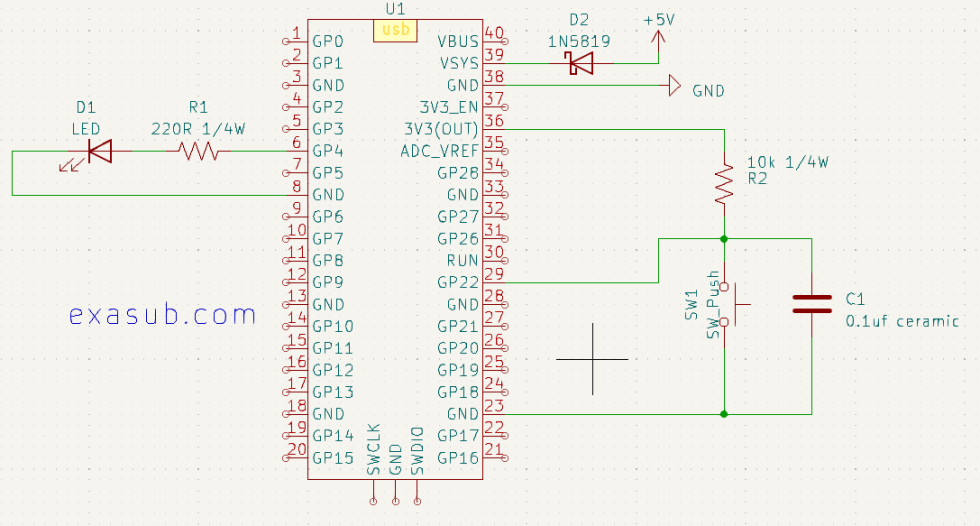
I have made this simple circuit for demonstration.

Schematic showing LED connected to GP4 and a Button connected to GP22

Button could be connected in two ways.

  1. Internal Pull Up/Down
  2. External Pull UP/Down

In the schematic i connected a button to GP22 using a external pull up of resistor 10k. I also used a capacitor in parallel with the button to debounce the button externally.

Using a external pull-up resistor can also help to protect the GPIO pin from damage due to excessive current flow. Without a pull-up resistor, a short circuit or other electrical fault in the switch or button could potentially allow a large current to flow through the GPIO pin, damaging it or the microcontroller itself.

Sample Code

import machine

# Set up the button on GPIO22 with external pull-up resistor
button = machine.Pin(22, machine.Pin.IN, machine.Pin.PULL_UP)

# Set up the LED on GPIO4
led = machine.Pin(4, machine.Pin.OUT)

# Loop forever
while True:
    # Read the current button value
    curr_button = button.value()

    # If the button is pressed, turn on the LED
    if curr_button == 0:
        led.value(1)
    # Otherwise, turn off the LED
    else:
        led.value(0)

Posted on — Leave a comment

How to use GPIO of Raspberry Pi Pico as Output Pins

One of the most important features of the Raspberry Pi Pico is its General-Purpose Input/Output (GPIO) pins. These pins can be used to control external devices, such as LEDs, motors, and relays.

The Raspberry Pi Pico has 26 GPIO pins, numbered from GP0 to GP25.
Each pin can be individually programmed to perform a specific task.

Steps to Use GPIO as Output Pins

To use the GPIO pins of Raspberry Pi Pico as output pins, follow these steps:

Step 1: Set up your Raspberry Pi Pico board and connect it to your computer via USB.

You can make the KiCad project like following.
Connect a LED via a 220 ohm resistor to the GP4 pins.

You can download and use the symbol and footprint from link below

Raspberry Pi Pico Symbol in KiCad 7 Project Library

To calculate the value of resistor you can use the Ohm’s Law Calculator
Use the following values
V (voltage): 3.3
A (Current) : 0.015
when you press calculate it will give you a resistance value of 220 ohm.

Remember never exceed the current value of 0.015A or 15mA for small leds as higher current may damage the component.

Schematic Diagram Showing LED connected to GP4 Pin via a 220 ohm resistor.

Step 2: Open your preferred code editor and create a new Python script.

Step 3: Import the required libraries by adding the following lines of code at the beginning of your script:

import machine
import utime

The “machine” library provides access to the GPIO pins of Raspberry Pi Pico, and the “utime” library allows us to add delays in our code.

Step 4: Define the pin number you want to use as an output pin. For example, if you want to use GP5 as an output pin, add the following line of code:

led_pin = machine.Pin(4, machine.Pin.OUT)

Here, we are using the “machine.Pin” class to define the pin number (4) as an output pin.

Step 5: Turn on the LED by setting the output value of the pin to 1. Add the following line of code:

led_pin.value(1)

This will set the output value of the GP4 pin to 1, which will turn on the LED connected to it.

Step 6: Add a delay in your code to keep the LED on for a specific time. For example, if you want to keep the LED on for 2 seconds, add the following line of code:

utime.sleep(2)

This will add a 2-second delay in your code.

Step 7: Turn off the LED by setting the output value of the pin to 0. Add the following line of code:

led_pin.value(0)

This will set the output value of the GP4 pin to 0, which will turn off the LED connected to it.

Step 8: Save your code and run it on your Raspberry Pi Pico board. You should see the LED turn on for 2 seconds and then turn off.

Complete Code

import machine
import utime

led_pin = machine.Pin(4, machine.Pin.OUT)

led_pin.value(1)

utime.sleep(2)

led_pin.value(0)

Example Code to try

import machine
import time

led_pin = machine.Pin(4, machine.Pin.OUT)

led_pin.value(1)  # turn on the LED
time.sleep(1)     # wait for a second
led_pin.value(0)  # turn off the LED
time.sleep(1)     # wait for a second

for i in range(10):
    led_pin.value(1)  # turn on the LED
    time.sleep(0.5)   # wait for half a second
    led_pin.value(0)  # turn off the LED
    time.sleep(0.5)   # wait for half a second
Posted on — 1 Comment

Raspberry Pi Pico Symbol in KiCad 7 Project Library

This project has all the files necessary to make a project using it.

In this project i have included a symbol library and a footprint library. It is a custom library. You can use this in another project by adding it into the project library list.

This project is made using the KiCad 7.

Symbol library name : RP2040_parts.kicad_sym

Footprint library name: Library.pretty

This project also has the 3d STEP file in it.

Posted on — Leave a comment

Handling errors with strings in MicroPython on Raspberry Pi Pico

When working with strings in MicroPython on Raspberry Pi Pico, it is important to handle errors that may occur during string operations. Errors can occur for a variety of reasons, such as invalid input or incorrect syntax. Fortunately, MicroPython provides several built-in mechanisms for handling errors with strings.

One of the most common errors that can occur with strings is a ValueError due to incorrect formatting. For example, if you try to convert a string to a numeric type and the string is not a valid number, a ValueError will be raised. To handle this error, you can use a try–except block:

string = "abc123"
try:
    num = int(string)
    print(num)
except ValueError:
    print("Invalid input, cannot convert to int.")

In this example, the int() function attempts to convert the string "abc123" to an integer. However, since "abc123" is not a valid integer, a ValueError is raised. The try–except block catches the error and prints a helpful message.

Another common error that can occur with strings is an IndexError due to attempting to access an element that does not exist in a string. For example, if you try to access the 10th character of a string that only has 5 characters, an IndexError will be raised. To handle this error, you can use a similar try–except block:

string = "hello"
try:
    char = string[10]
    print(char)
except IndexError:
    print("Index out of range, cannot access character.")

In this example, we attempt to access the 10th character of the string "hello", which does not exist. An IndexError is raised, and the try–except block catches the error and prints a helpful message.

It is also possible to raise your own custom errors when working with strings. For example, you may want to raise an error if a string does not meet certain criteria. To do this, you can use the raise statement:

def process_string(string):
    if len(string) < 5:
        raise ValueError("String must be at least 5 characters long.")
    # do something with the string

In this example, the process_string() function raises a ValueError if the input string is less than 5 characters long. This allows the function to provide useful feedback to the user if the input is invalid.

In summary, handling errors with strings in MicroPython on Raspberry Pi Pico involves using try–except blocks to catch built-in errors, and raising your own custom errors when necessary. By using these mechanisms, you can ensure that your code is robust and handles unexpected situations gracefully.

Posted on — Leave a comment

Using strings with input/output operations on Raspberry Pi Pico

Using strings with input/output operations is a common task when working with MicroPython on Raspberry Pi Pico. In this post, we will explore how to use strings with input/output operations, including reading and writing strings to files and the console.

Reading strings from the console
The easiest way to read strings from the console is to use the built-in function input(). This function reads a line of text from the console and returns it as a string.

name = input("Enter your name: ")
print("Hello,", name)

This code prompts the user to enter their name and then greets them by name.

Writing strings to the console
To output a string to the console, we can use the built-in function print(). This function takes one or more arguments, converts them to strings, and outputs them to the console.

print("Hello, world!")

This code outputs the string “Hello, world!” to the console.

Writing strings to files
To write a string to a file, we need to open the file for writing and then use the write() method to write the string to the file.

with open("output.txt", "w") as f:
    f.write("Hello, world!")

This code creates a new file called “output.txt” in the current directory and writes the string “Hello, world!” to the file.

Reading strings from files
To read a string from a file, we need to open the file for reading and then use the read() method to read the string from the file.

with open("input.txt", "r") as f:
    contents = f.read()
    print(contents)

This code reads the contents of a file called “input.txt” in the current directory and outputs the contents to the console.

Posted on — Leave a comment

String comparison in MicroPython on Raspberry Pi Pico

String comparison is a common task in programming. In MicroPython, you can compare strings using the same comparison operators as you would in Python. This includes the “==” operator for equality, “!=” for inequality, “>” for greater than, “<” for less than, “>=” for greater than or equal to, and “<=” for less than or equal to.

It is important to note that when comparing strings, MicroPython compares the underlying Unicode code points of each character in the strings. This means that string comparison is case-sensitive, and that different characters with the same visual representation (such as accented characters or ligatures) may have different code points and therefore be considered different characters.

Here are some examples of string comparison in MicroPython:

# Equality
string1 = "Hello, world!"
string2 = "Hello, world!"
if string1 == string2:
    print("The strings are equal.")
else:
    print("The strings are not equal.")

# Inequality
string1 = "Hello, world!"
string2 = "Goodbye, world!"
if string1 != string2:
    print("The strings are not equal.")
else:
    print("The strings are equal.")

# Greater than
string1 = "apple"
string2 = "banana"
if string1 > string2:
    print("The first string is greater than the second.")
else:
    print("The first string is not greater than the second.")

# Less than
string1 = "apple"
string2 = "banana"
if string1 < string2:
    print("The first string is less than the second.")
else:
    print("The first string is not less than the second.")

In the above examples, the output would be:

The strings are equal.
The strings are not equal.
The first string is not greater than the second.
The first string is less than the second.

As mentioned earlier, string comparison in MicroPython is case-sensitive. This means that the strings “hello” and “Hello” would be considered different. If you want to perform case-insensitive string comparison, you can convert both strings to lowercase (or uppercase) before comparing them. Here is an example:

string1 = "Hello"
string2 = "hello"
if string1.lower() == string2.lower():
    print("The strings are equal, ignoring case.")
else:
    print("The strings are not equal, even ignoring case.")

In this example, the output would be “The strings are equal, ignoring case.”

Overall, string comparison in MicroPython is straightforward and follows the same principles as in Python. It is important to keep in mind the case-sensitivity of string comparison and to be aware of the differences in code points between different characters.